
How to record voice notes on iPhone and iPad
A thought worth keeping. A voice worth remembering.
Record an idea in Notenity, keep the audio beside your writing, and turn speech into text when you want to. Your notes, recordings and transcription are processed on your device.

The quick route
Open a note → Notebook menu → Record & transcribe → Record audio only. Allow microphone access if asked, record your thought, then Stop to save and play it back.
Before your first little tap
- Open or create the note where you want the recording. Give it a useful title so it is easy to find later.
- Notenity needs microphone permission to record. Transcription is optional; choose English or Arabic to match the spoken language if you want text as well as audio.
Let’s make it happen.
Follow along in Notenity. Tap a screenshot for a closer look.
Choose audio only or a live transcript
Open the three-line Notebook menu and choose Record & transcribe. Choose Record audio only for a recording, or Record with live transcript if you also want text in short sections.
You can also use Record from an open note. Recording works independently of transcription, so you do not have to generate text to keep your audio.
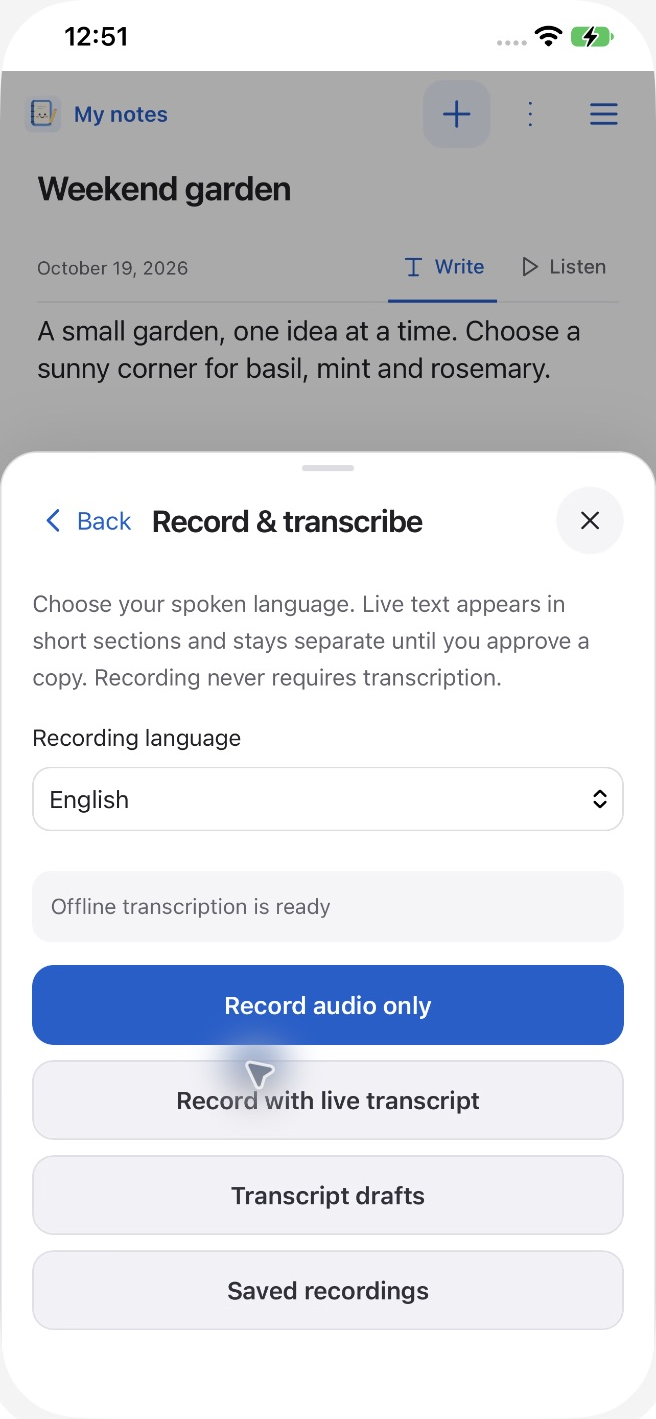
Start with the kind of recording you need. Record, pause and save
Allow microphone access if iOS asks. Speak clearly and keep the microphone unobstructed. A short test is a useful way to check your setup before a longer recording.
Use Pause and Resume when you need a break. Tap Stop when you are finished to save the recording. Play it back from its saved card to check that the sound is there.
Write or draw while you record
Add text or ink while the recording runs to create linked moments. These links reflect when you wrote or drew, rather than an exact alignment to every spoken word.
Choose Listen beside Write, then use linked content to revisit that moment in the audio. Switch back to Write when you want to edit the note.
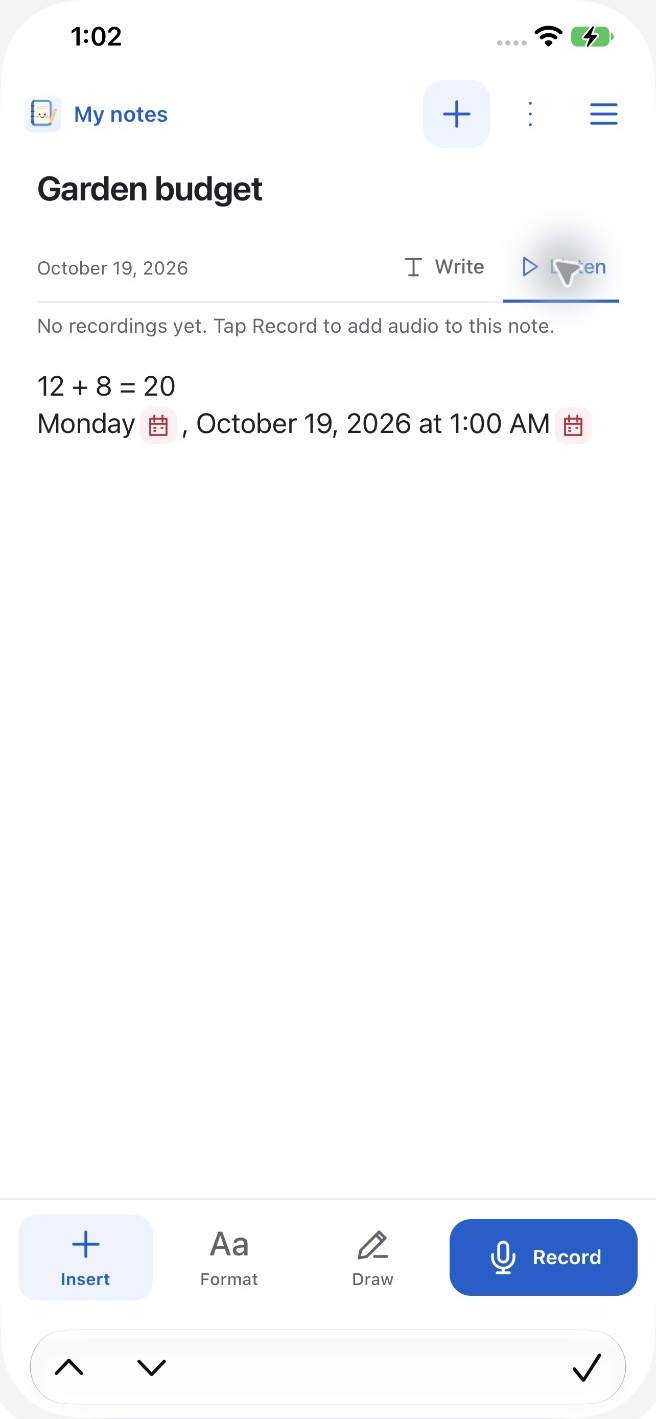
Listen takes you back to moments linked with your note. Choose the spoken language for transcription
In Record & transcribe, open Recording language and select English or Arabic to match the speaker. This chooses speech recognition; it does not translate between languages.
For an existing recording, open its More menu and choose Transcribe. For a new recording, choose Record with live transcript. Check the speech status if transcription is unavailable, and keep the app open while it processes.
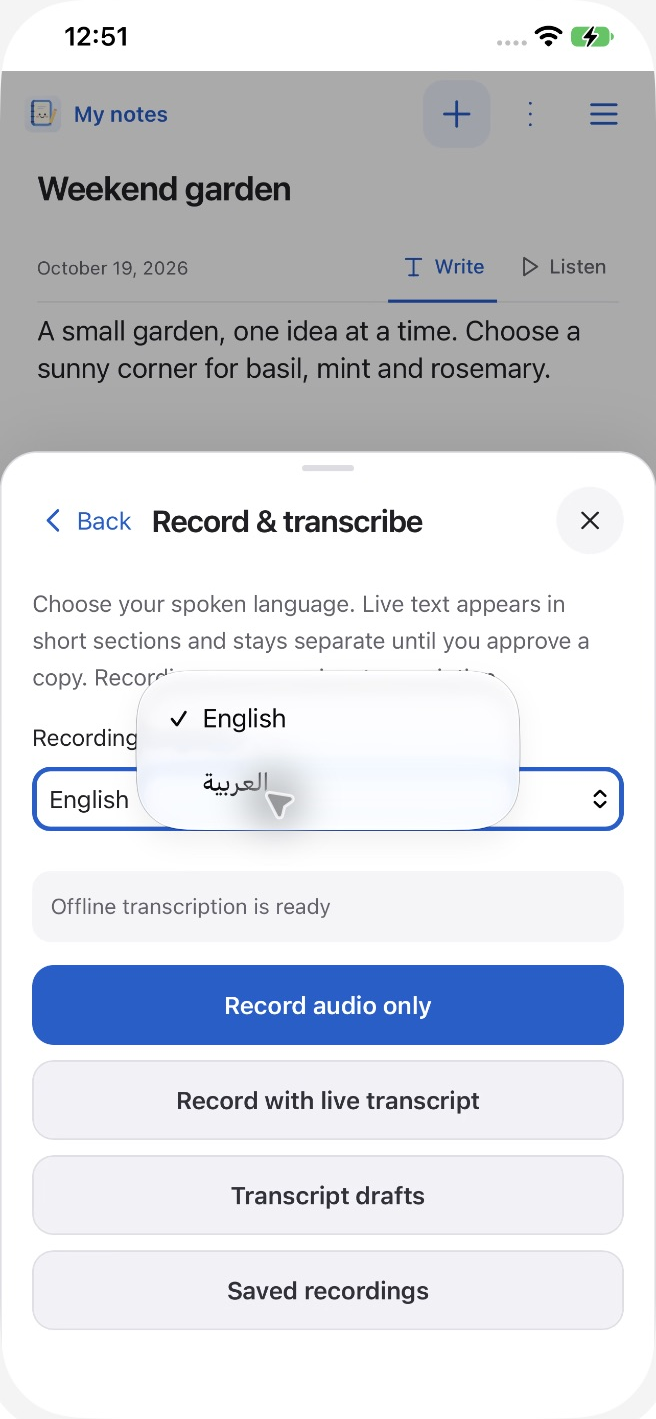
Match the language to the speech you want to recognize. Review the text before adding it
Open Transcript drafts from Record & transcribe to review available drafts. Live text arrives in delayed sections, so it may not appear immediately.
Check names, numbers and punctuation, edit any mistakes, then approve a copy for your note. Drafts stay separate until you insert them; the original recording is preserved.
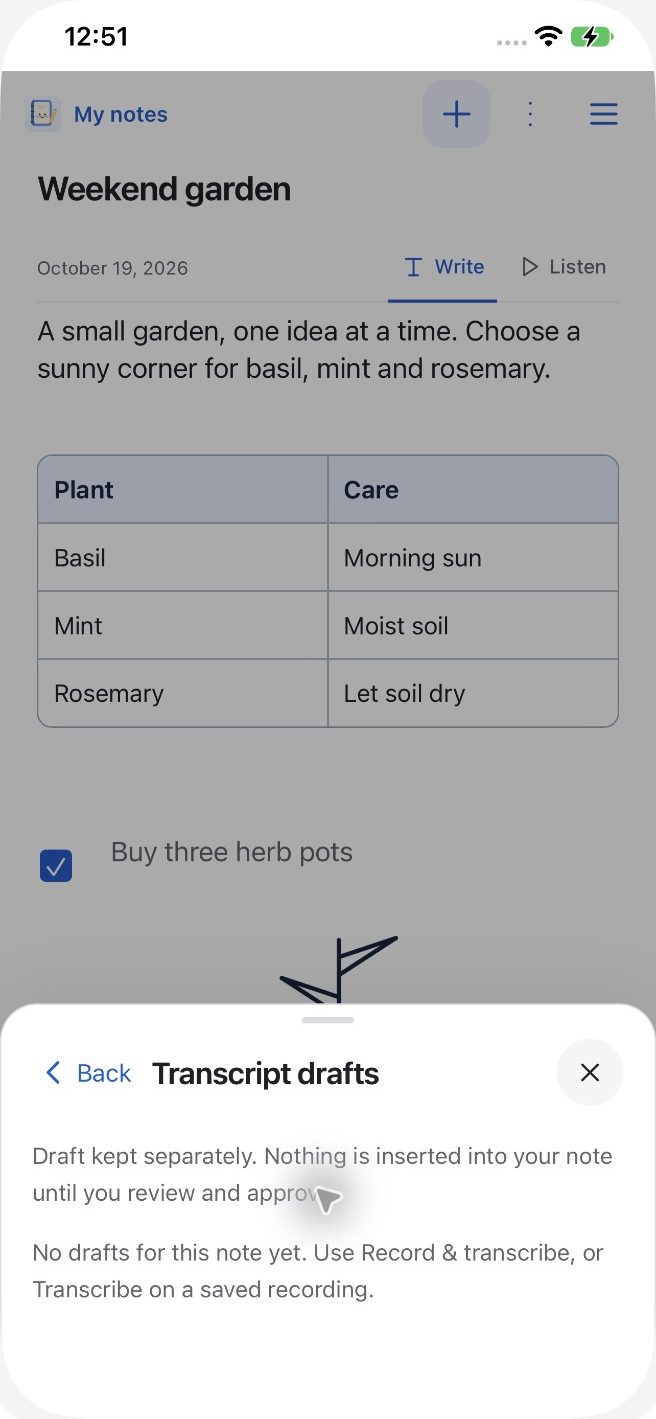
Review a draft before inserting a copy into your notebook. Keep the copy you will need later
Play the saved recording and check any transcript you inserted. For a full notebook backup, open Settings → Backup & data → Back up notebook and keep the file outside the app.
If you decide to delete the audio but keep its words, insert the transcript into the note first and check it. Then use the recording’s More menu → Delete recording and read the confirmation. The inserted copy remains ordinary note text.
Screenshots show Notenity on iPhone with fictional sample content. On iPad or another app version, the layout and placement of some controls may differ.
A tiny hiccup?
Why won’t a recording start?
Review microphone access through Notenity Settings → Device permissions or your device’s iOS Settings. Return to the note and start recording again.
Why is playback quiet or silent?
Check playback volume and the active audio output, including connected headphones. Make a short test recording with the microphone clear. If the issue continues, contact support with your device and app version.
Why is there no live transcript yet?
Live transcription produces delayed sections. Keep the app open, check the speech status, and confirm that the recording language matches the speech. You can record audio only and transcribe the saved recording later.
Does changing English to Arabic translate my recording?
No. Recording language tells speech recognition which language to expect. Choose the language actually being spoken.
Why aren’t my transcript words in the note?
A transcript draft is separate from the notebook. Open Transcript drafts, review the text and insert a copy. Unreviewed drafts are not automatically current note text.
Can I record and transcribe offline?
Yes. Recording is local and the speech model is included with Notenity. English and Arabic transcription run on your device. Installing the app, sending support email or sharing to an online destination can require internet access.
Can I keep the transcript and remove the recording?
Yes. Insert and check the transcript in your note before deleting the recording. Deleting audio is different from removing its inserted text. Keep a backup if you may want the original audio again.
Still stuck? Email Dreamsnity with your device, app version and the step you reached. Hide private details in any screenshot you choose to send.
Meet your private notebook.
Notenity is a paid app for iPhone and iPad. Buy once. No subscription, in-app purchases or Dreamsnity account. See the App Store for current local pricing and compatibility.