
How to merge PDFs on iPhone and iPad
A little less scattered. A lot more together.
Bring separate PDFs together into one document with Docenity. Make a project pack, collect receipts or add supporting pages to a report, with processing on your device.

The quick route
Open Documents → Merge → select your PDFs in order → Merge PDFs → Open copy. Review the combined pages and give the result a useful name.
Before your first little tap
- Have at least two PDFs ready in Docenity. Import any missing files first. A file stored only in a cloud provider must download before you can work with it offline.
- Decide the reading order before selecting files. Merge combines complete PDFs in selection order; Organize pages is the tool for moving individual pages afterward.
Let’s make it happen.
Follow along in Docenity. Tap a screenshot for a closer look.
Gather the files in Documents
Open Docenity and find the PDFs you want to combine. Use Import if a file is still in Apple’s Files app or another provider. Check the filenames so you choose the intended versions.
If you want to include a signed or edited document, save those edits first and select the finished copy.
Open Merge and choose the order
Tap Merge in Documents, or open Merge PDFs in PDF Tools. Select the file you want to read first, then the second, followed by any others.
The numbered badges are the important part: 1 comes first, then 2. They show the combination order even when the files appear in a different order in the list.
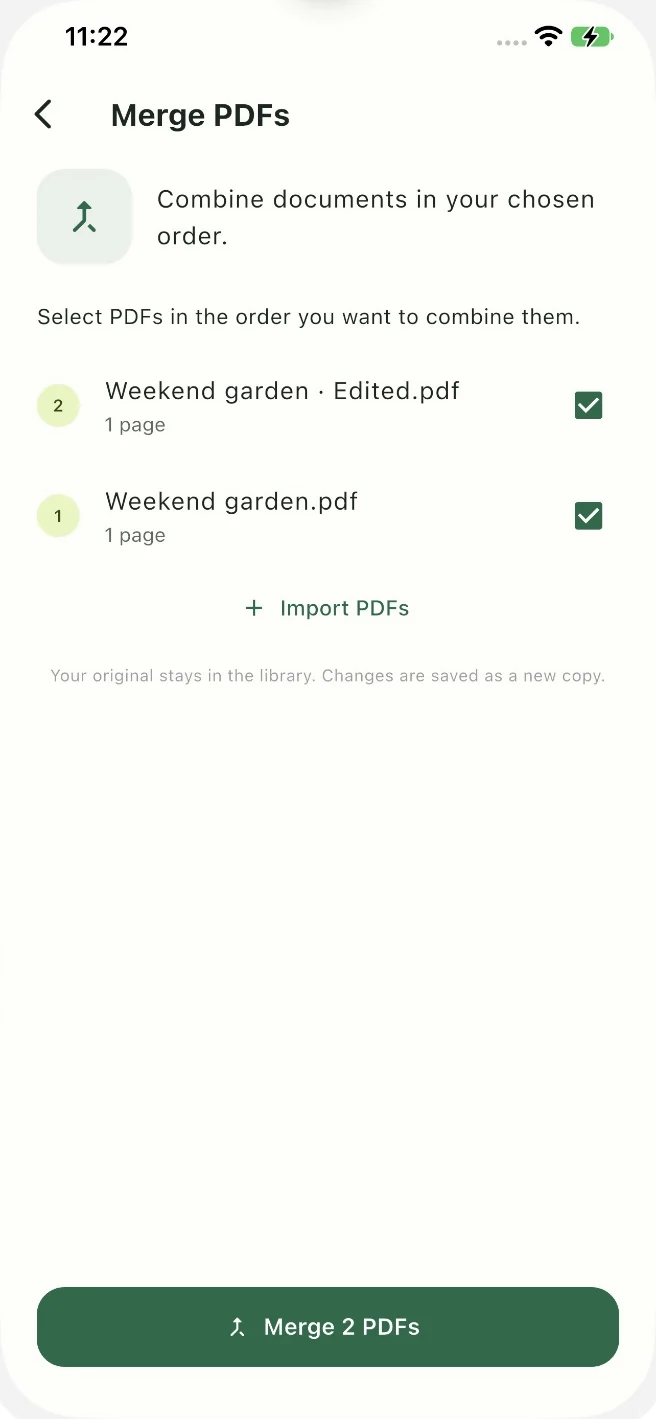
Follow the numbered badges, not the list position. Create the combined PDF
Check the selected filenames and numbered badges. Tap Merge PDFs; the button includes the number of selected files, such as Merge 2 PDFs.
Wait for the completion sheet. The result is saved as a new copy, and the source files stay in your library.
Open and name the new copy
On the completion sheet, check the result’s page count and tap Open copy. Use Rename if you want a clearer filename, such as Garden project pack.
The page count should reflect the pages in the files you selected. A filename alone does not tell you whether you picked the original or an edited version, so review the pages too.
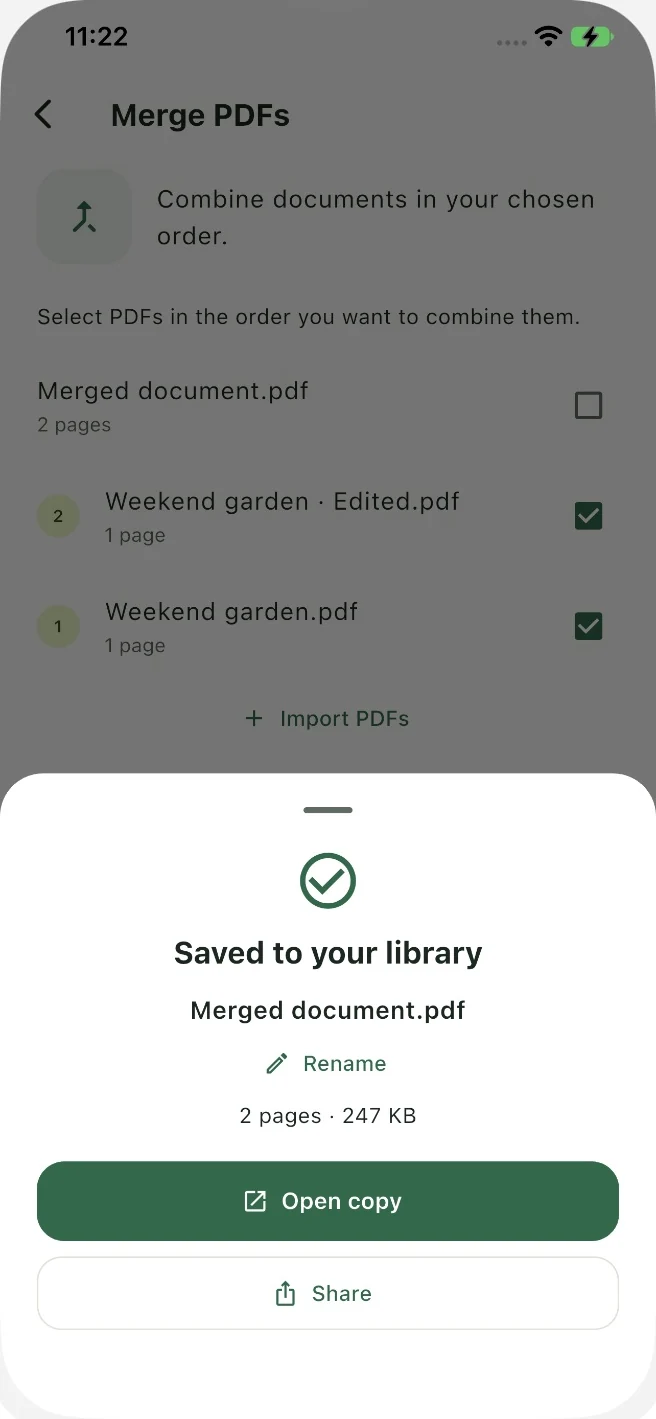
Your files are together. Open the copy to check them. Check every page and adjust if needed
Use the editor’s page arrows to review the combined PDF. If individual pages need moving, open Organize pages from More, or Pages where shown in the toolbar.
Move a page with its arrows or drag handle. Choose Apply to return to the editor, then Save to create the finished copy. Reopen it to confirm the final order.
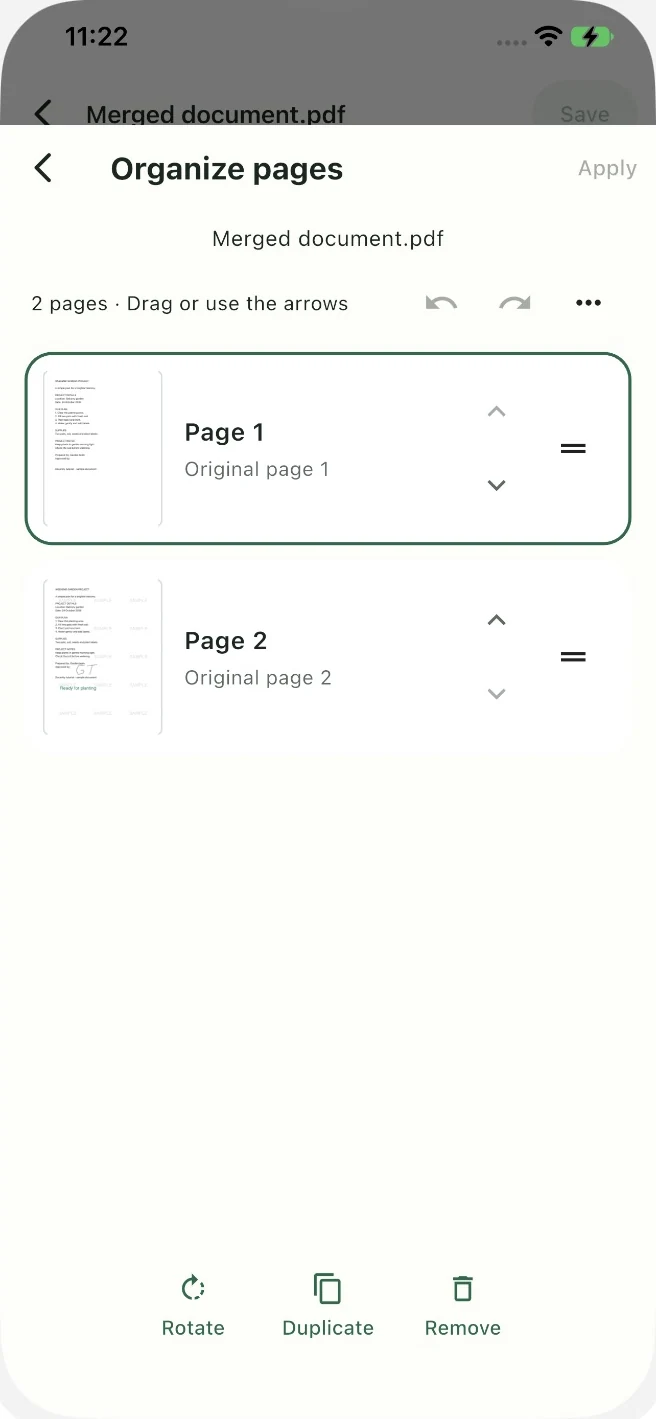
Use Organize pages for changes inside the merged file.
Screenshots show Docenity on iPhone with fictional sample content. On iPad or another app version, the layout and placement of some controls may differ.
A tiny hiccup?
Why are the files in the wrong order?
Check the numbered selection badges before merging. If the saved result needs a different page order, open Organize pages, move the pages, choose Apply, then Save.
Why can’t I find a PDF to merge?
Make sure the PDF has been imported into Docenity. If its provider stores it online, download it first. Check the filename and any active search or folder filter in Documents.
Will merging delete the original files?
The merge result is a separate copy. Your source PDFs remain in the library, so you can return to them or build a different bundle.
Can I merge PDF files offline?
Yes, when the files are available on your device in Docenity. Downloading cloud files or sharing through an online destination can still need internet access.
Why did the page order not stay after I rearranged it?
Organize pages has two stages: Apply updates the editing session, and Save creates the saved copy. Open that newest copy when checking the result.
Can I put photos into the combined PDF?
Turn the photos into a PDF with Images to PDF or Import photos first, then combine that PDF with the others. Review the image-page order before merging.
Still stuck? Email Dreamsnity with your device, app version and the step you reached. Hide private details in any screenshot you choose to send.

Meet your private PDF toolbox.
Docenity is a paid app for iPhone and iPad. Buy once. No subscription, in-app purchases or Dreamsnity account. See the App Store for current local pricing and compatibility.