
How to sign a PDF on iPhone and iPad
Your mark. One happy little page.
Add a handwritten signature to a PDF with Docenity, then save a separate copy to check and share. The signing work happens on your device.

The quick route
Open your PDF → Sign → draw your signature → Place on page → position it → Save. Read the page-change notice, choose Apply changes, and check the saved copy.
Before your first little tap
- Have Docenity installed and your PDF available in Documents. Use Import to choose a file from Apple’s file picker. Download cloud-provider files before going offline.
- Complete any form fields before signing. A signed page is saved as an image, which flattens its selectable text, links and interactive fields. Keep your original for later editing.
Let’s make it happen.
Follow along in Docenity. Tap a screenshot for a closer look.
Open the PDF you want to sign
In Docenity, open Documents and tap your PDF. If it is still in another app or file provider, import a copy first. Find the page with the signing line and read it before adding your mark.
Tap Sign in the editor’s bottom toolbar. If a control is tucked away on your screen, check More.
Draw your signature
Draw on the signature board with your finger. Choose an available ink colour. Undo removes the last stroke; Clear lets you start again.
When you are happy with the drawing, tap Place on page. This takes you back to the document so you can choose its position.
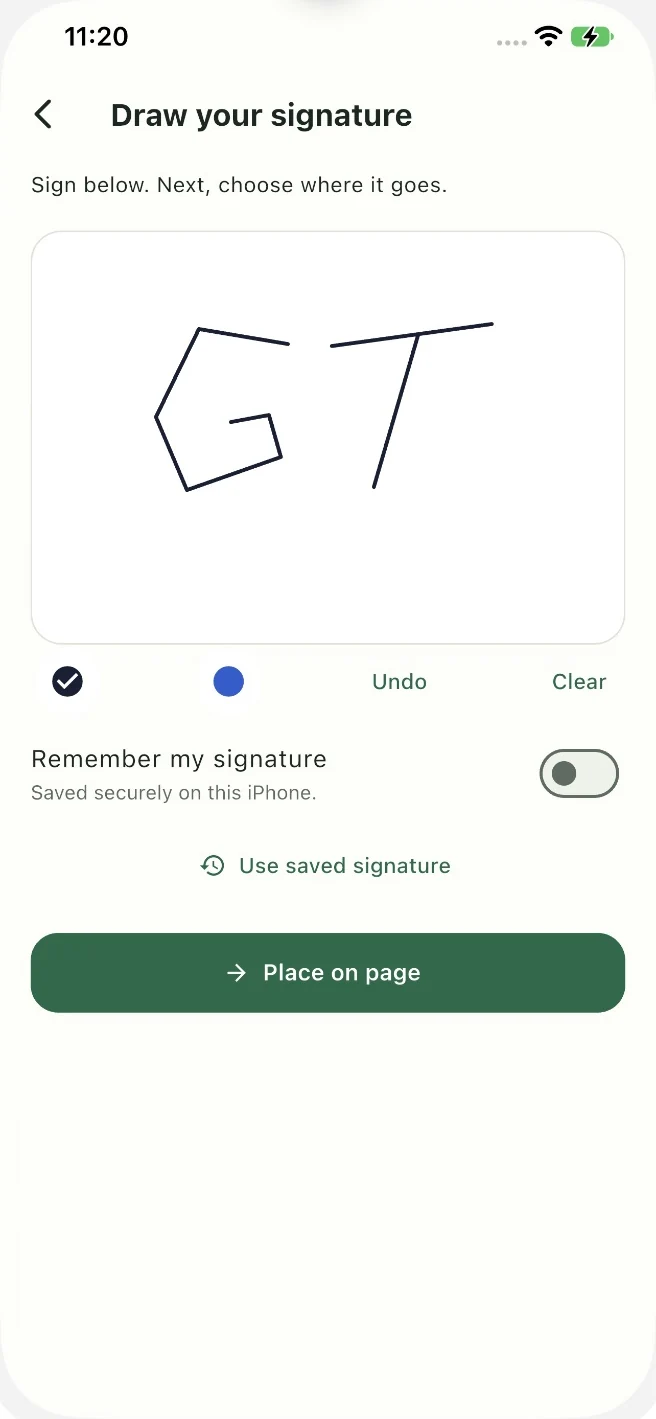
Draw, check, then choose Place on page. Place it neatly on the signing line
Tap the signing position on the PDF. Drag the selected signature to move it, then use its corner handle or Resize until it fits the available space.
Check that it does not cover a date, a name or other document text. Tap the checkmark to finish positioning. The checkmark closes the selection controls; you still need to save.
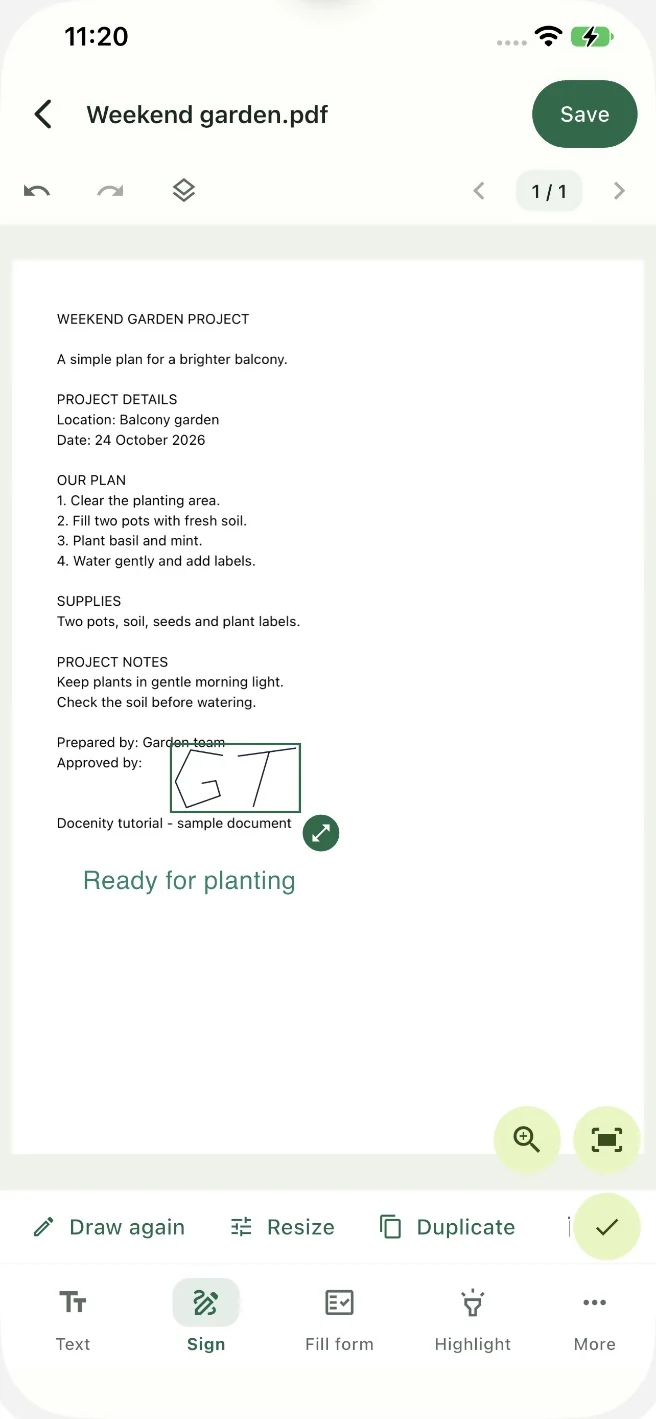
Move and resize your mark before saving. Save and review the page changes
Tap Save at the top right. Read the notice about affected pages becoming images, then choose Apply changes when you are ready.
The signed page will no longer keep its interactive form fields, links or selectable text in their original form. Your source document is kept separately.
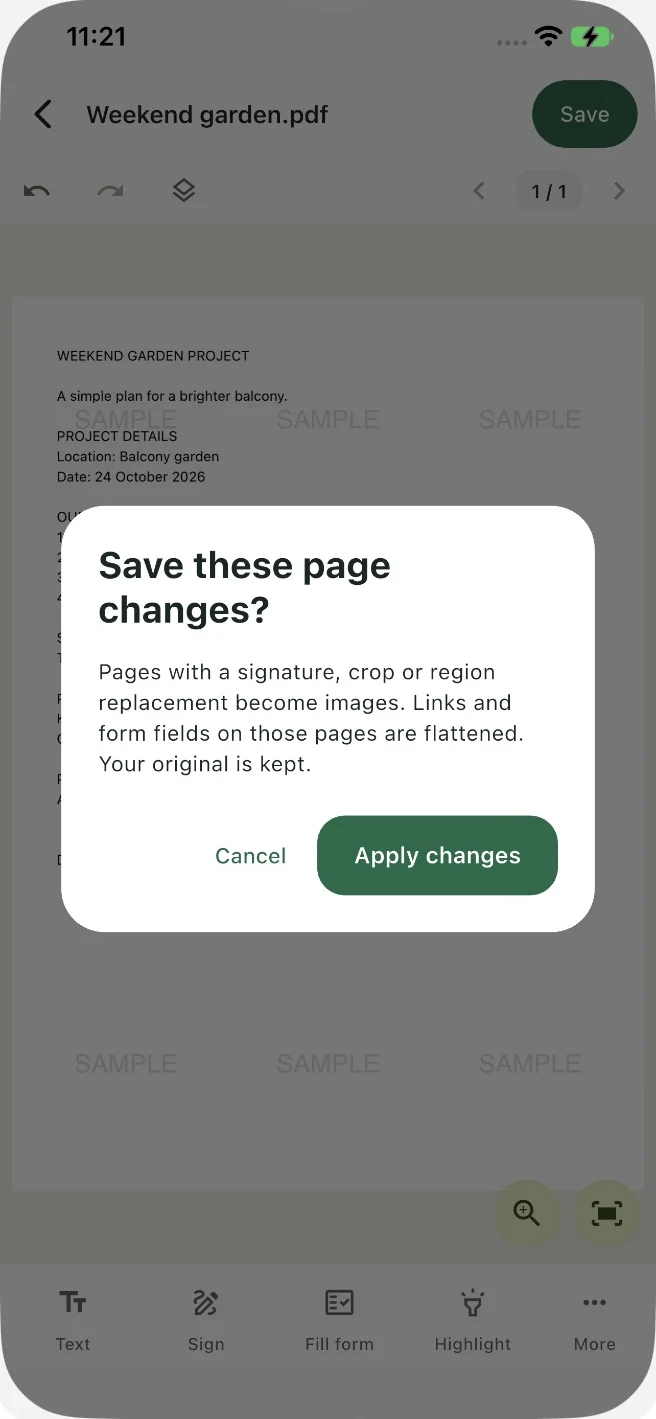
Check what changes before you apply them. Open the finished copy
Return to Documents and open the edited copy. In the walkthrough, its name includes Edited.pdf. Check the signature’s size, position and page, along with the rest of the completed form.
When it looks right, use the share action to choose where the copy goes. Sharing through another app or service follows that destination’s settings.
Screenshots show Docenity on iPhone with fictional sample content. On iPad or another app version, the layout and placement of some controls may differ.
A tiny hiccup?
Why can’t I see the signature after drawing it?
Place on page opens the placement step. Tap the PDF where the signature should go, adjust it, finish selection with the checkmark, then save.
Why is Save unavailable?
Make sure you have actually placed the signature on the page. Opening the signature board alone does not add a change to the PDF.
Why did the form fields or selectable text disappear?
Saving a signature rebuilds the affected page as an image. Fill fields before signing and keep the original PDF if you will need its editable fields or text later.
Can I sign a PDF offline?
Yes, once the PDF is available locally in Docenity. Importing a file that is only in a cloud service, installing the app or sending the result online may require a connection.
Where is my signed copy?
Look in Documents for the edited filename. Choose All files and clear a search or folder filter if it is not visible. Open the copy and check the result before sharing.
Still stuck? Email Dreamsnity with your device, app version and the step you reached. Hide private details in any screenshot you choose to send.

Meet your private PDF toolbox.
Docenity is a paid app for iPhone and iPad. Buy once. No subscription, in-app purchases or Dreamsnity account. See the App Store for current local pricing and compatibility.