
Docenity support.
One little step
at a time.
Learn to scan, edit and sign PDFs on iPhone and iPad. Find the right button, follow the steps, and get back to your day.
Real app screens. Clear instructions. A friendly helping hand.


What would you like to do?
Start with a task below. Each guide includes the steps and the details that matter before you save.
No guide matches yet. Try a shorter word, choose All guides, or ask us for help.
Get startedCreate or import a PDF on iPhone and iPad
Bring a file into Documents, or turn a short piece of text into a new PDF.
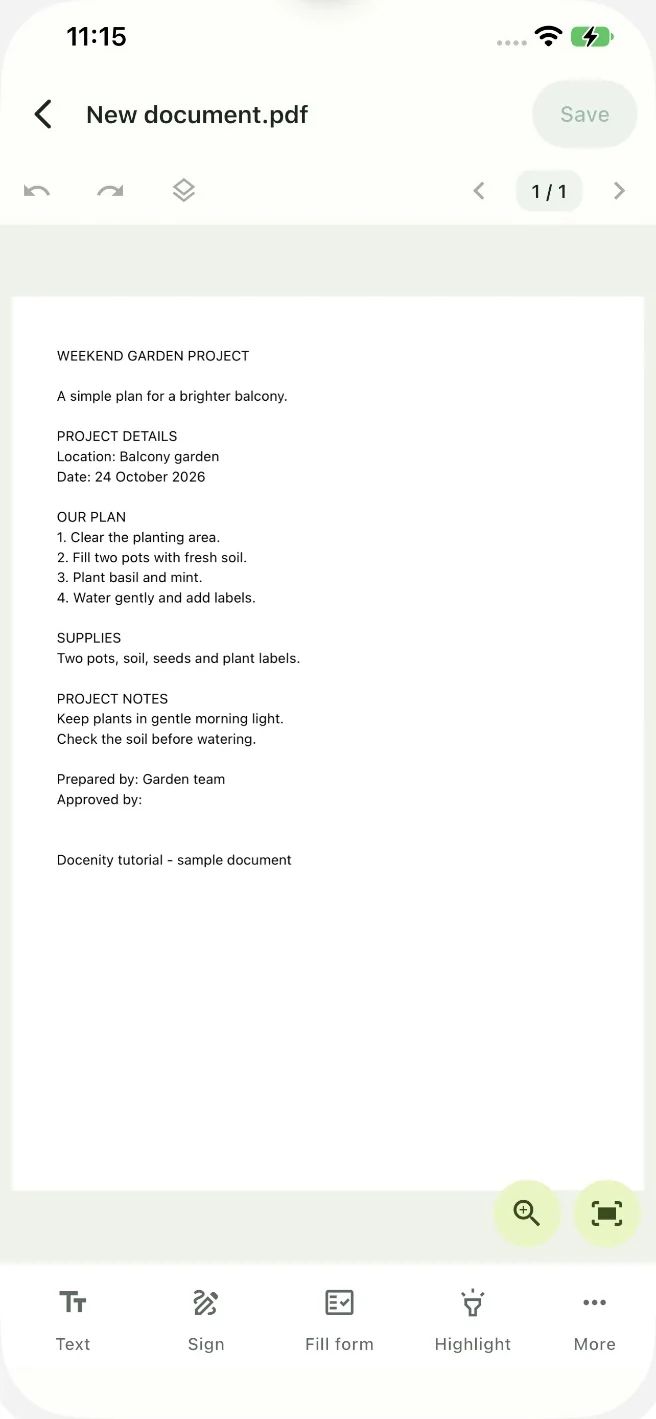
Documents is your local library in Docenity. It is the starting point for a project brief, a receipt, a worksheet or a document you want to sign. Import copies a file into this library so you can work with the Docenity copy.
- Open Documents. To bring in a PDF, tap Import and choose it in Apple’s file picker.
- To make a PDF from text instead, tap the document-with-plus icon beside Recent files. Write or paste your text, then tap Save.
- Tap the new PDF in Documents to open its page editor. You can also tap Edit PDF and choose a file.
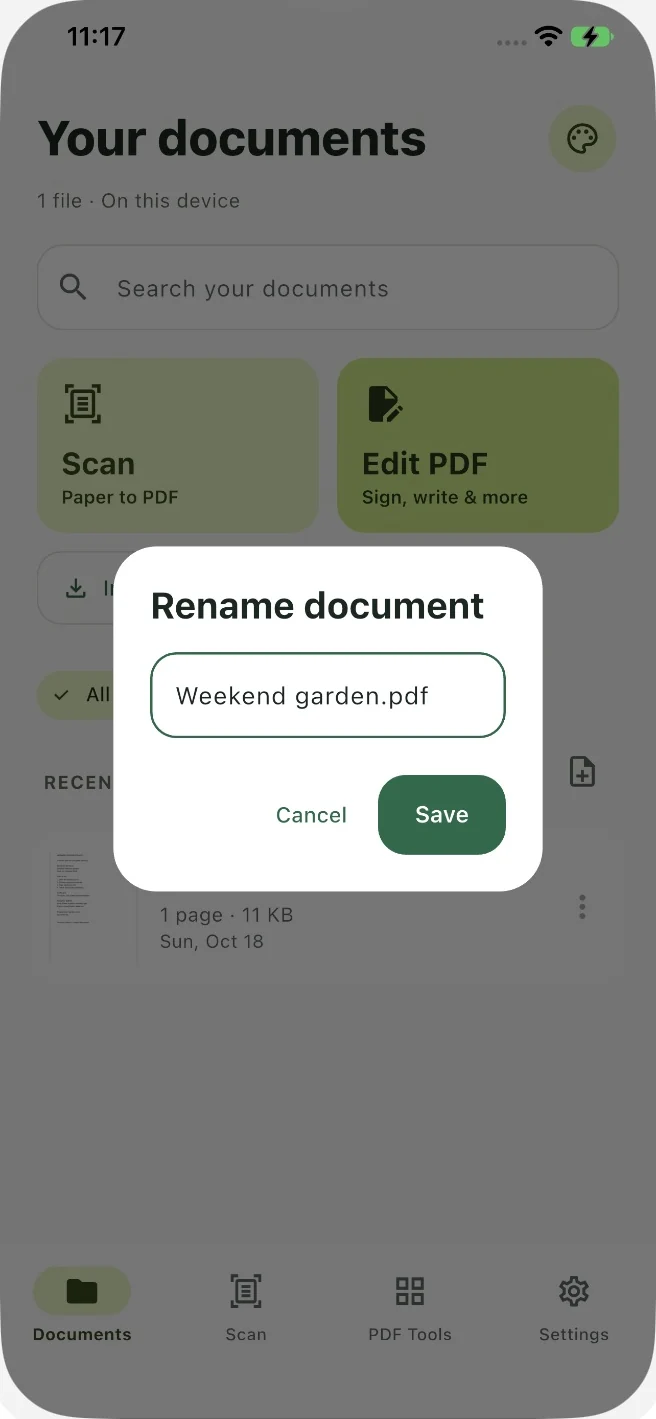
- For a clearer filename, return to Documents, open the file’s three-dot menu and choose Rename. Enter the name and tap Save.
Edit & signAdd text to a PDF and move it into place
Write on the page, choose a colour, and adjust the placement before saving.
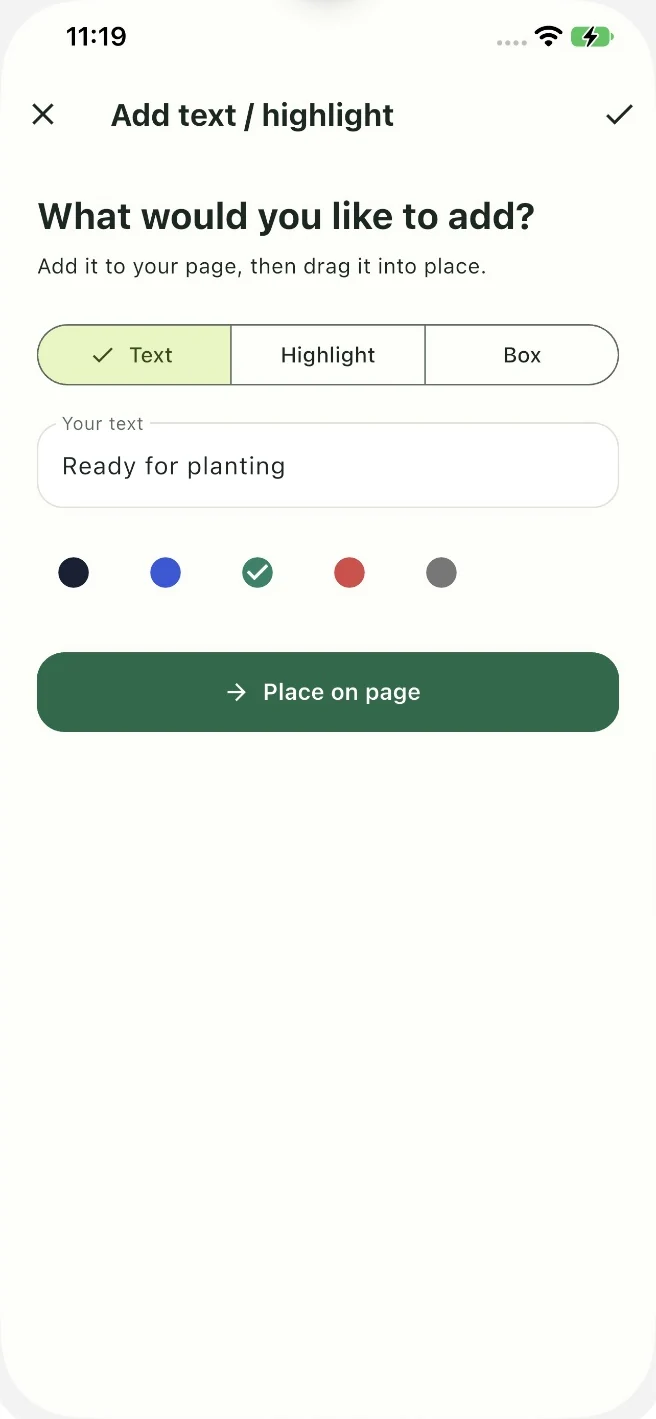
Use Text for a note, a label or an answer on a printed form. This places a new text addition over the page. It is useful when the original PDF has no field to type into, including a form that was scanned from paper.
- Open your PDF and tap Text in the bottom toolbar.
- Enter your text and choose a colour. Tap Place on page.
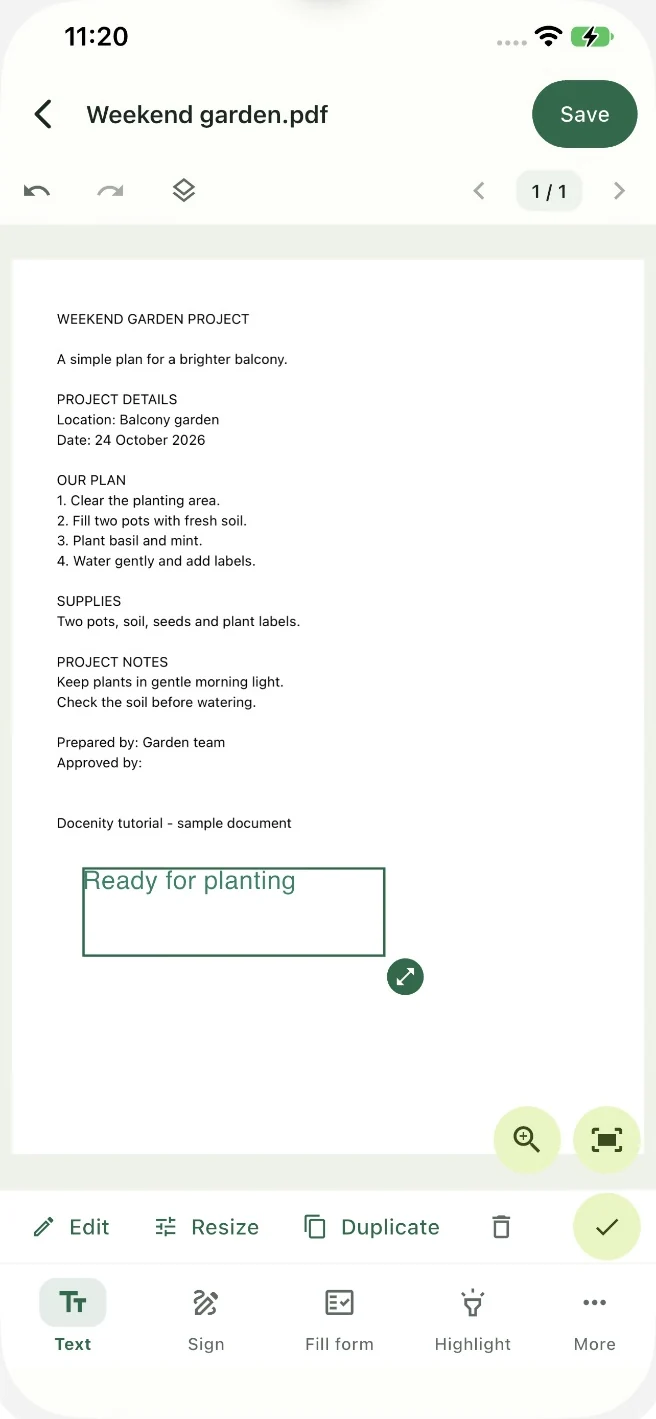
- Tap a clear position on the PDF. Drag the selected text to move it, then use the corner handle or Resize to adjust its size.
- Tap the checkmark to finish positioning. Add any other edits you need, then tap Save at the top right.
Edit & signSign a PDF on your iPhone or iPad
Draw a signature, place it on the document and save a signed copy.
Open the full signing guide with screenshots and troubleshooting
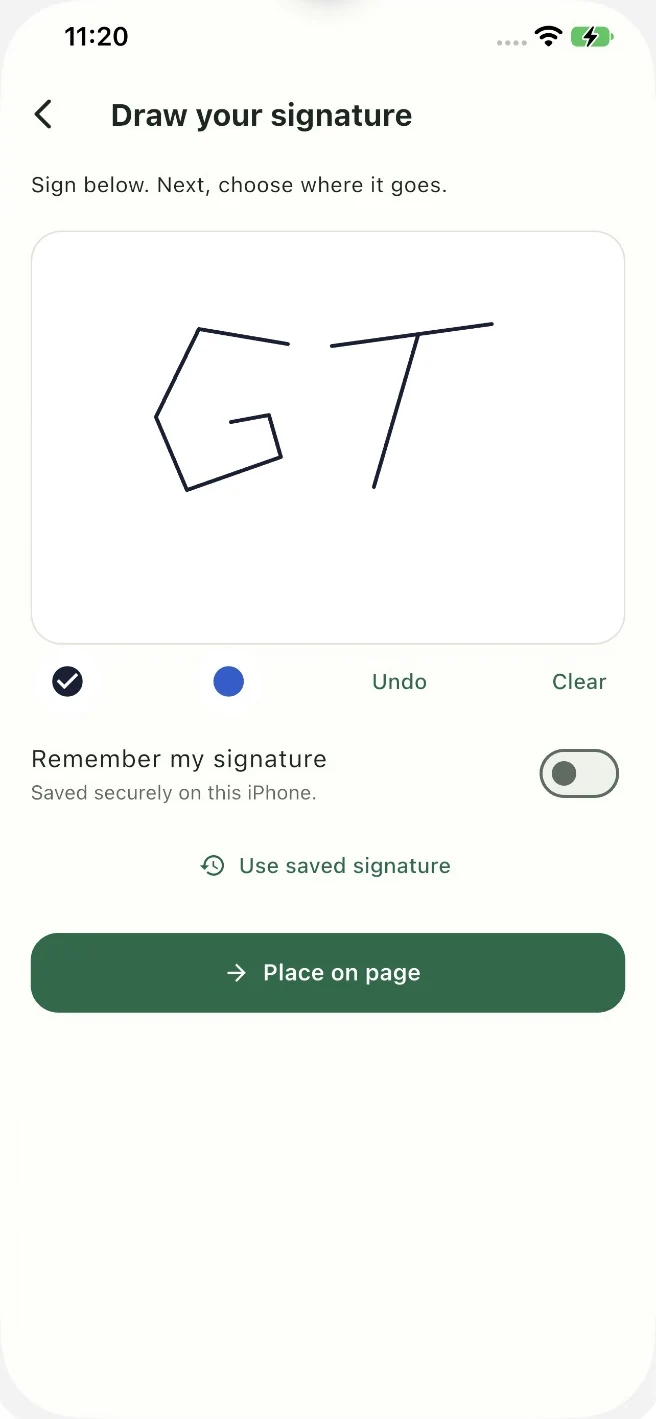
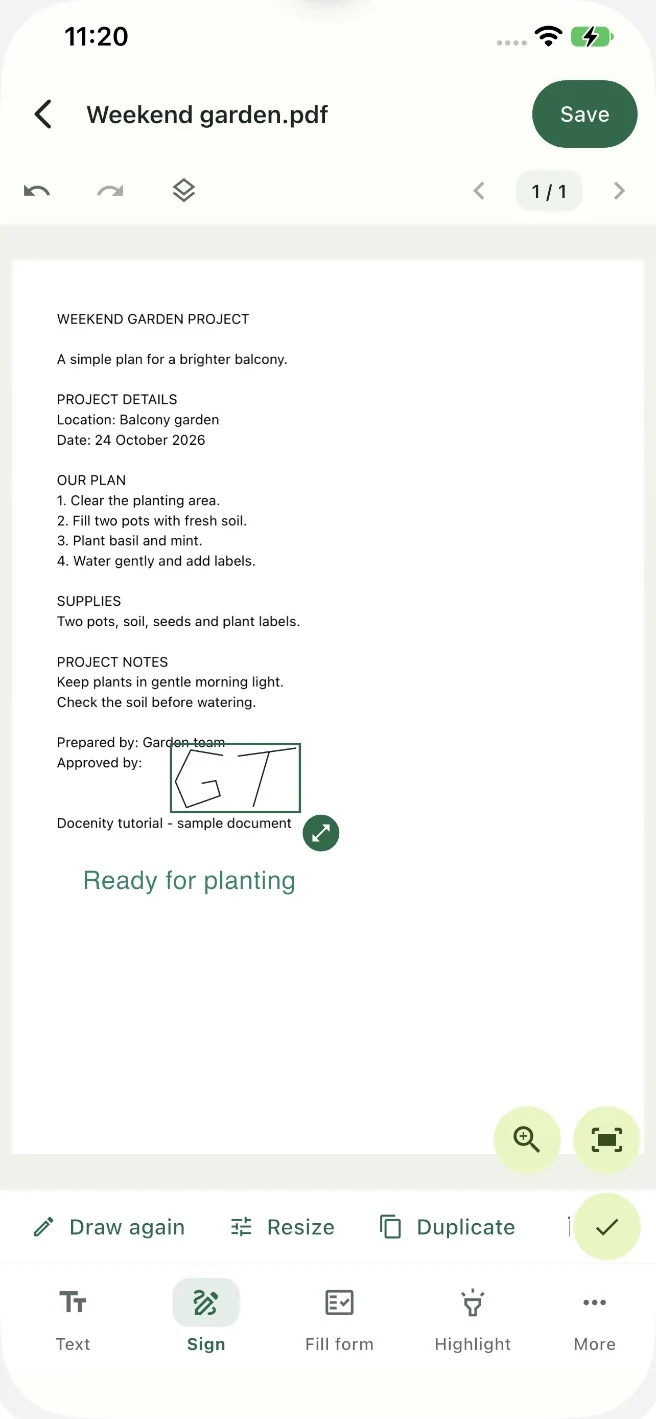
Docenity adds a visible handwritten signature mark to a PDF. You choose where it goes, so the same flow works for a signing line, an approval area or a blank part of a page. The initials in these screenshots are a fictional example.
- Open the PDF and tap Sign in the bottom toolbar.
- Draw on the signature board. Use Undo or Clear if you want to correct the drawing.
- Tap Place on page, then tap the signing position on the PDF.
- Drag the signature into place. Use its corner handle or Resize to make it fit, then finish selection with the checkmark.
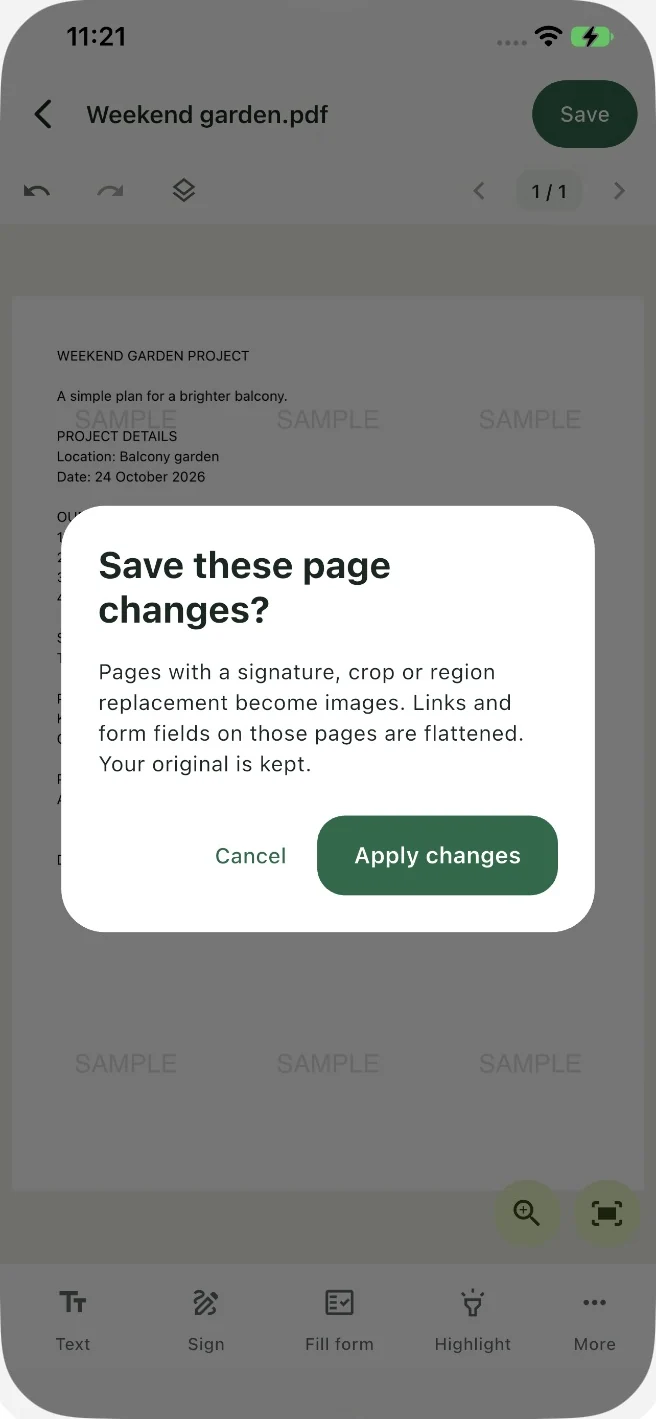
- Tap Save. Read the page-change notice and choose Apply changes when you are ready. Open the saved copy and check the signature.
Edit & signAdd a repeated watermark to a PDF
Cover the page with a faded text pattern such as SAMPLE or DRAFT.
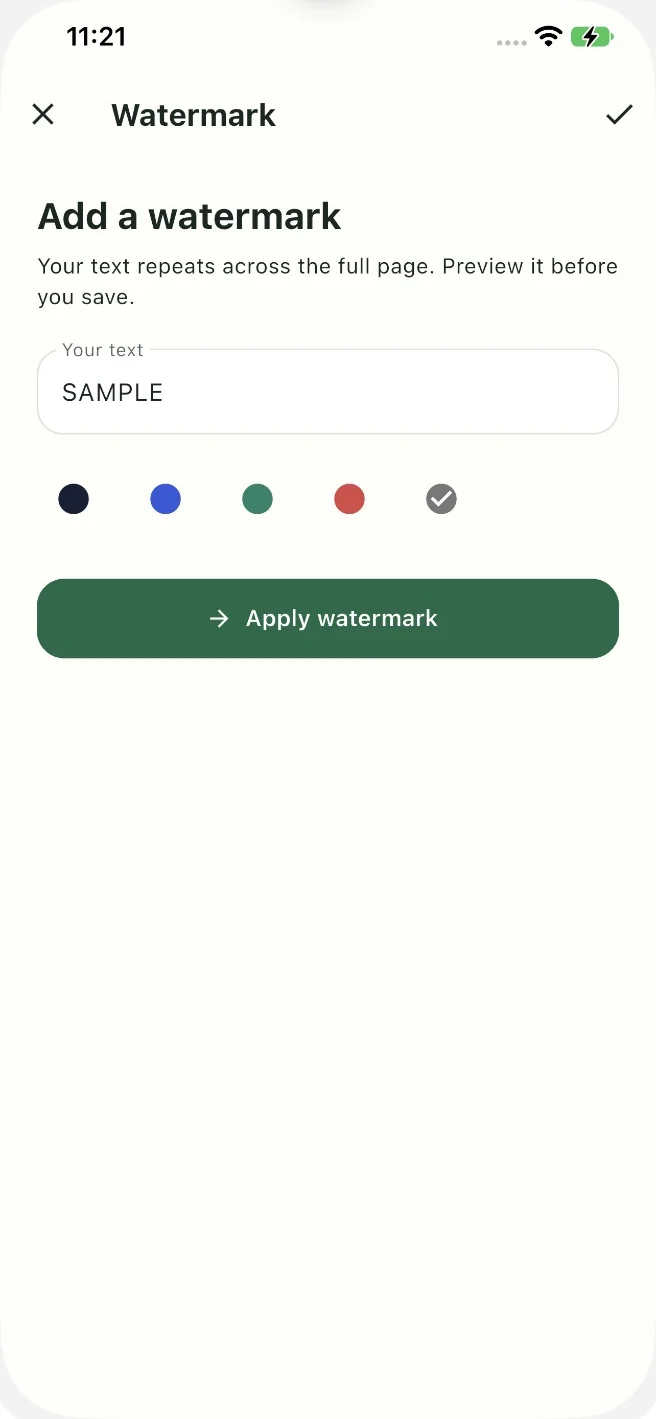
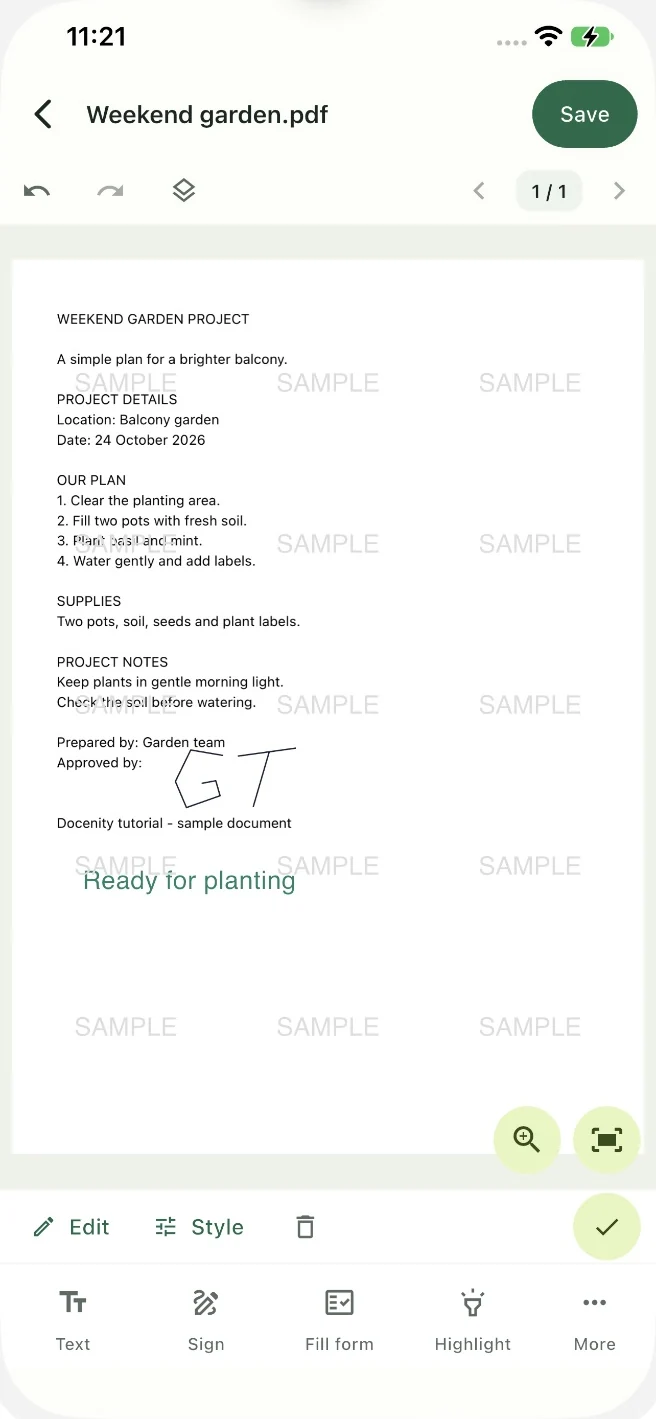
A watermark helps a reader recognize the status of a document. Docenity repeats the text across the page automatically, so you do not need to position each copy. You choose the wording; the app does not add automatic Docenity branding.
- Open the PDF editor and choose Watermark from the toolbar or More.
- Enter one line of text, such as SAMPLE, and choose a colour.
- Tap Apply watermark. Check the repeated pattern in the page preview.
- Use Style if you need to adjust the available size, colour or page-scope settings. Finish selection, then tap Save.
Edit & signFill a PDF form or write on a scanned form
Understand the difference between an interactive field and a blank printed line.
Some PDFs contain interactive fields that already know where an answer belongs. Others are simply pictures of a form. A visible line or box on a scan does not automatically become a field you can type into.
- Open the PDF and choose Fill form in the editor.
- For a supported interactive form, tap a highlighted field. Enter the answer and apply it, or select the supported checkbox or radio option.
- If the page has no fields, use Text to place an answer over the printed blank. Move and resize the addition until it fits.
- To create an interactive text field, open More → Create text field, name it and place it on the page. Save the copy, then use Fill form to enter its value.
- Finish the other fields, tap Save and inspect the saved result before adding a signature or sharing it.
Get startedSave an edited PDF and keep the original
Know what the checkmark, Apply and Save controls do.
You can make several additions in one editing session. The checkmark closes the selected item’s controls; it does not replace the final Save action. Page organization also has an Apply action before you return to the editor and save.
- Review your additions on the page. Use the page arrows to inspect other pages if needed.
- Tap Save at the top right of the PDF editor.
- If Docenity explains that the affected pages will become images, read the notice. Choose Apply changes to continue with those effects.
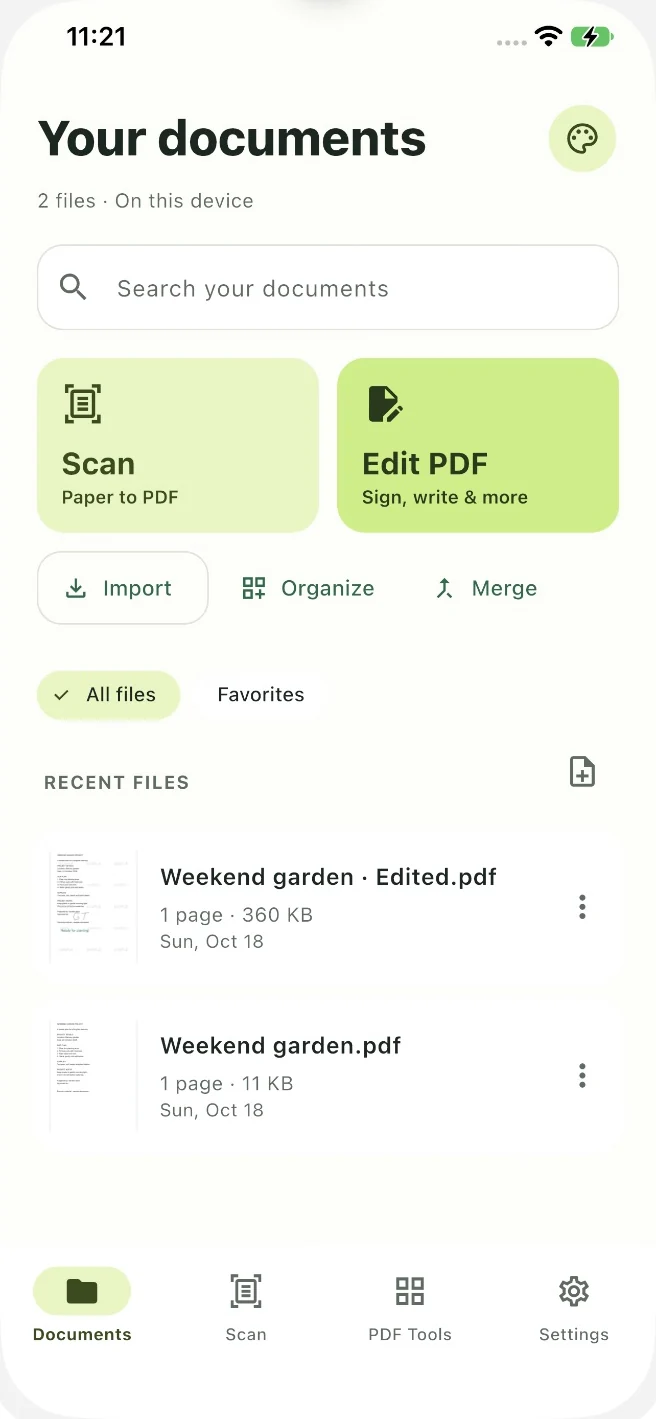
- Check the saved document’s title. In this walkthrough, the filename gains Edited.pdf.
- Return to Documents. The original and the edited copy are separate files; open the edited copy to check the result.
Pages & filesMerge PDF files in the order you choose
Combine separate documents into one PDF on your device.
Open the full merging guide with screenshots and troubleshooting
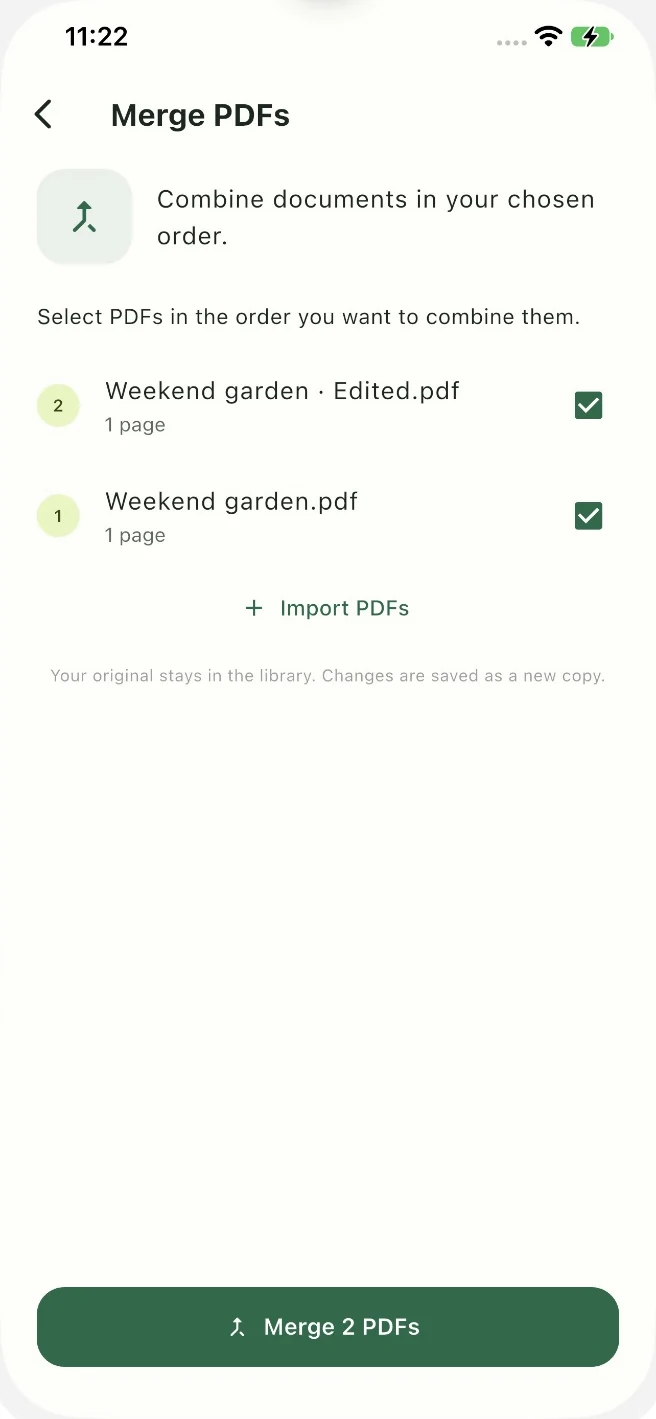
Merge PDFs combines complete files. It is useful for a project pack, a set of receipts or a report with attachments. The sample below joins an original page and its edited version to make a before-and-after bundle.
- Tap Merge in Documents, or find Merge PDFs in PDF Tools.
- Select the first PDF you want in the result, then select the next one. The numbered badges show the order.
- Check the selected files and tap Merge PDFs. The button shows how many files will be combined.
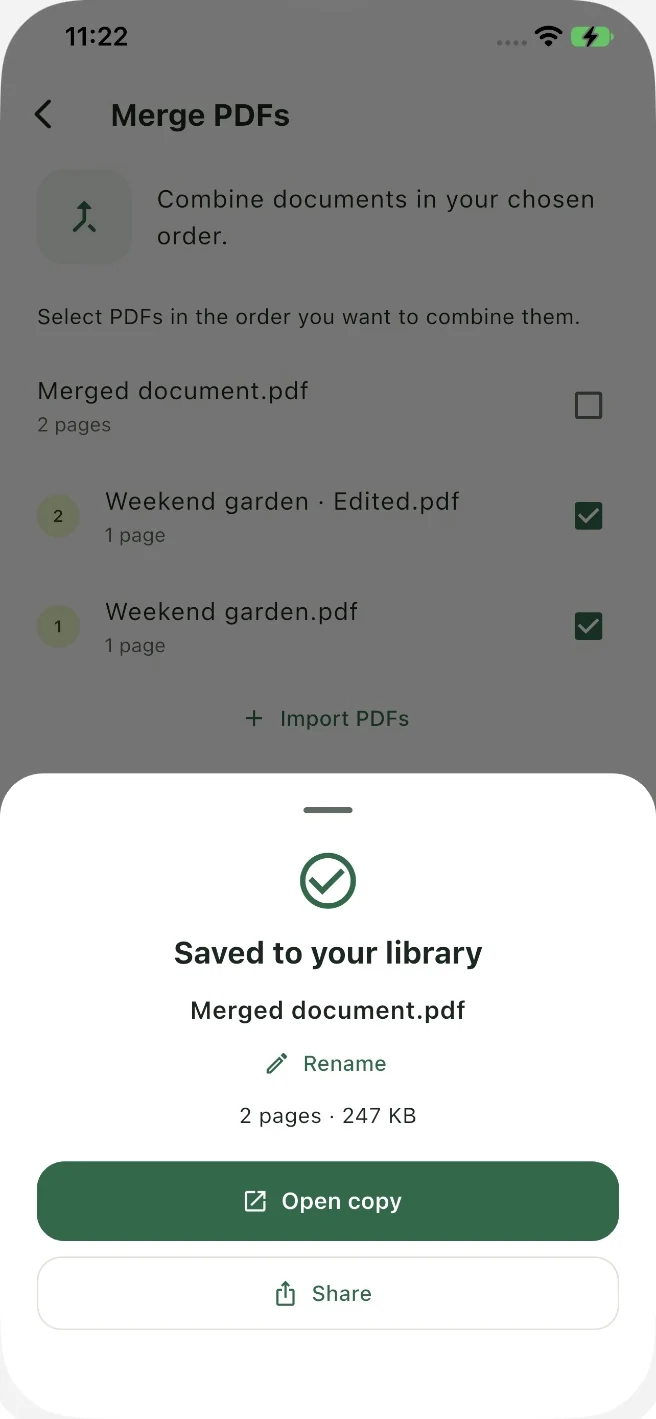
- On the completion sheet, check the page count and tap Open copy. You can also choose Rename to give the bundle a clearer name.
- Use the page arrows in the editor to review the combined PDF. The source files remain in the library.
Pages & filesReorder, rotate or duplicate PDF pages
Use page thumbnails to arrange a document before saving a new copy.
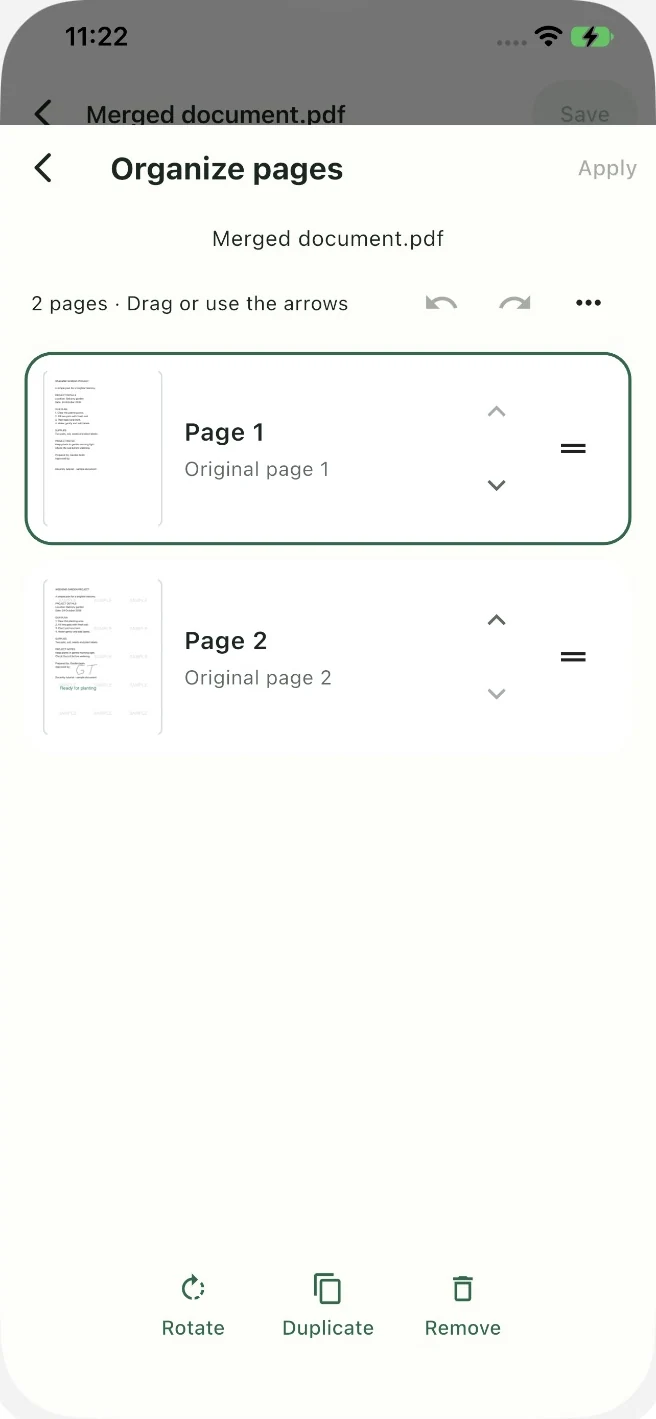
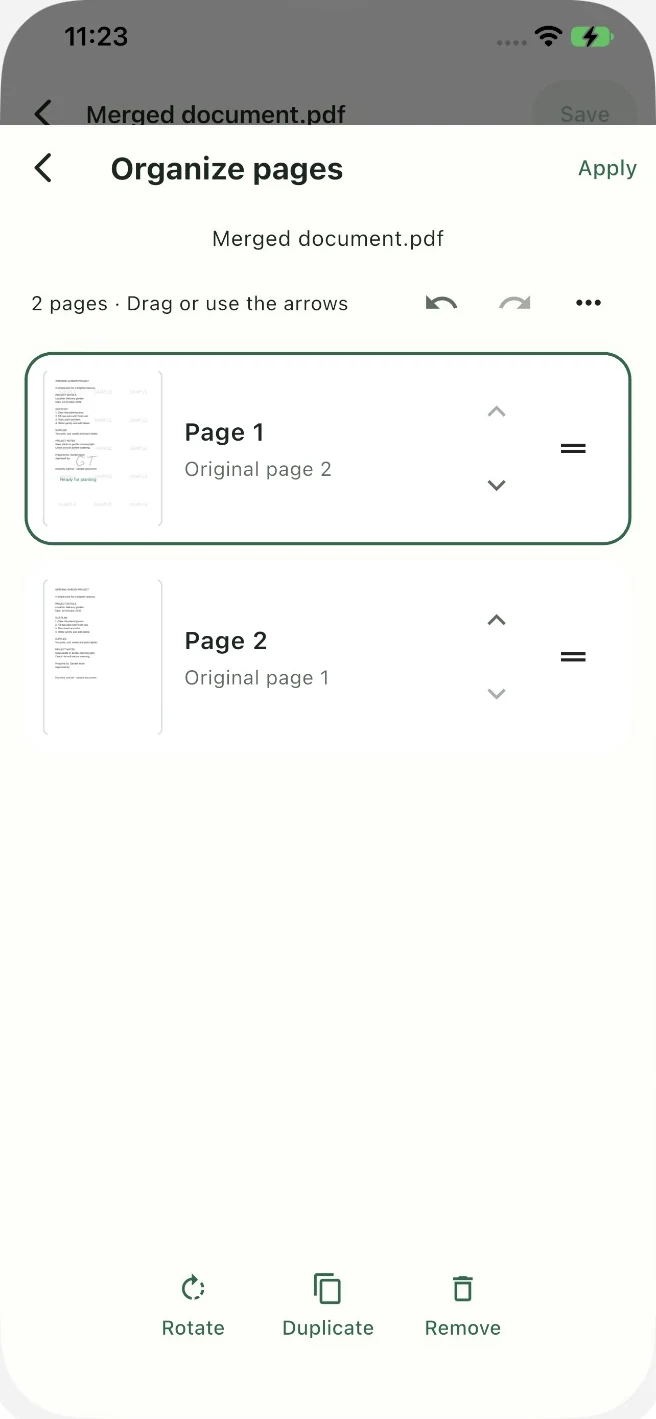
Organize pages gives you a thumbnail view of a PDF. This makes it easier to compare pages than switching back and forth in the full-page editor. Original-page labels help you follow a page as its position changes.
- Open the PDF and choose Organize pages from More, or Pages where shown in the toolbar.
- Use the arrows beside a thumbnail to move the page up or down. You can also use its drag handle.
- Select a page to see Rotate, Duplicate and Remove. Check the page you selected before applying one of these actions.
- Review the resulting order and tap Apply to return to the editor.
- Tap Save in the editor. Open the new copy and check that the page order matches your intention.
Text & scanningExtract PDF text into Text workspace
Read, count and reformat document text before copying or exporting it.
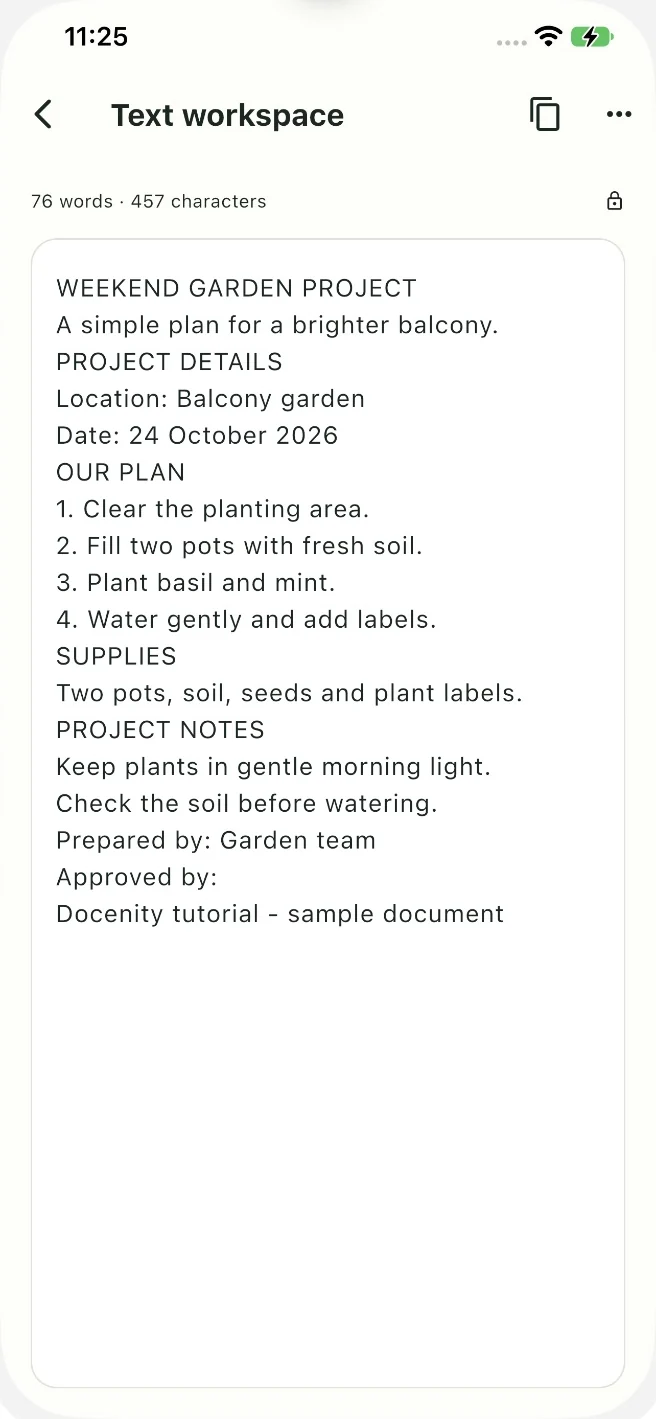
Text workspace works with extracted text rather than the visual layout of the PDF. It is useful for reusing a passage, checking a word count or cleaning up a block of text. The sample uses the original PDF, which still has selectable text.
- Open PDF Tools and search for workspace. Tap Text workspace.
- Choose a PDF from your library or use Open from Files.
- Check the selected filename and tap Open text workspace.
- Review the extracted passage and the word and character counts at the top.
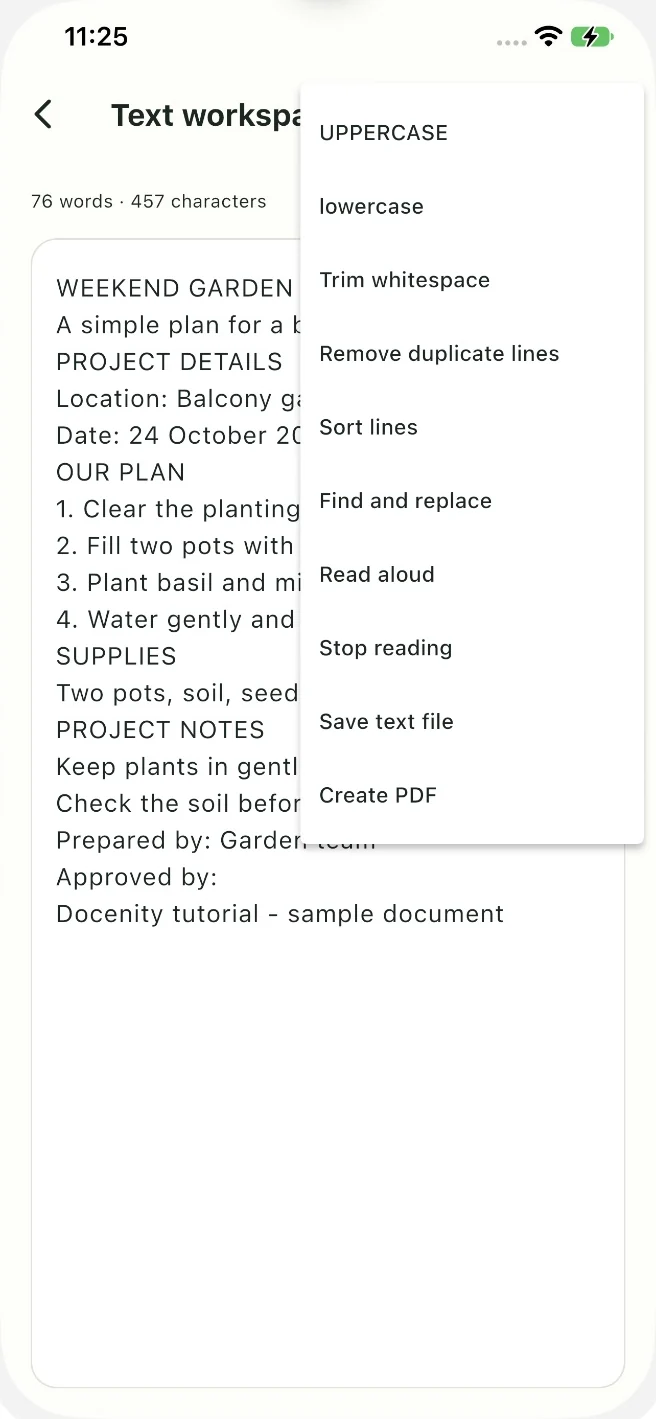
- Open the three-dot menu for actions such as UPPERCASE, lowercase, Trim whitespace, Find and replace, Read aloud, Save text file or Create PDF.
Text & scanningScan paper documents or turn photos into a PDF
Choose a scan mode, capture the page and check its edges.
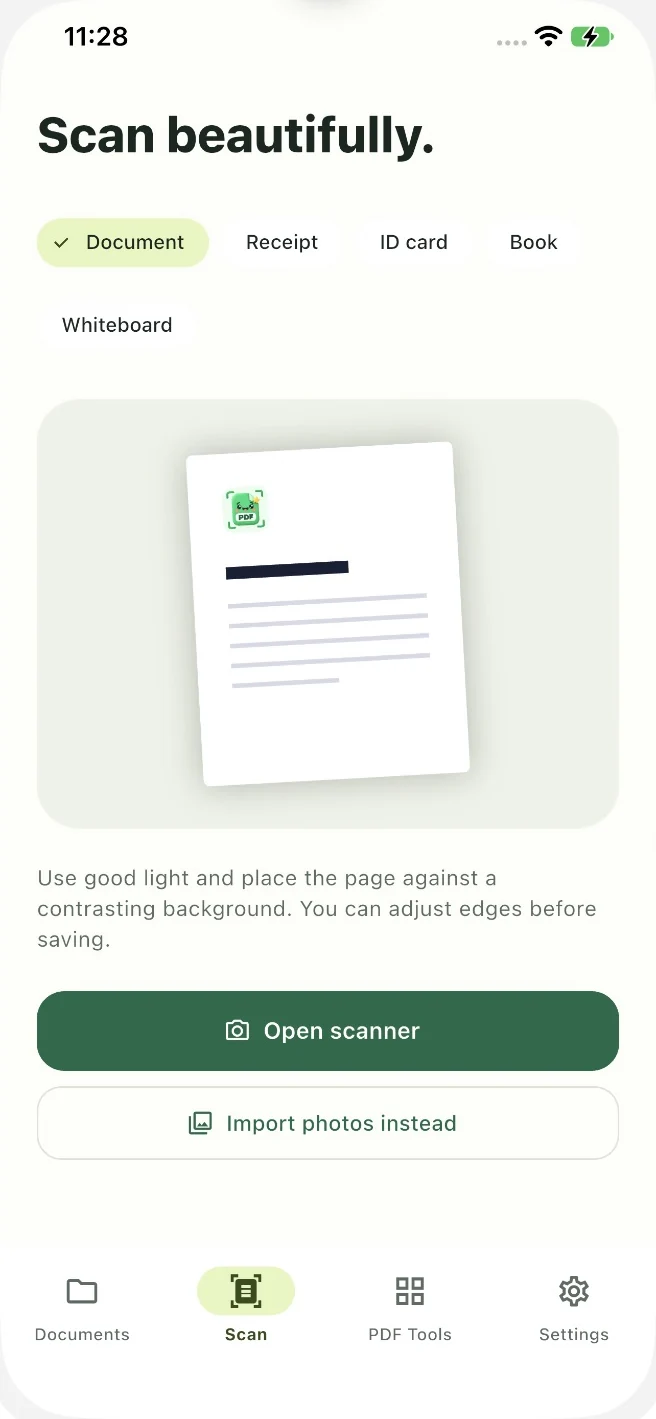
The Scan tab has Document, Receipt, ID card, Book and Whiteboard modes. Good light and a contrasting background help make the page easier to capture. Keep the paper flat and all four corners visible whenever possible.
- Open Scan and choose the type of document.
- Tap Open scanner. Camera access is needed for this feature; respond to the system permission request on your device.
- Capture the page or pages in Apple’s scanner and adjust their edges before saving.
- Save the scan. Docenity adds the resulting PDF to Documents and opens it.
- For existing images, use Import photos instead, or Images to PDF in PDF Tools. Choose the photos in Apple’s picker and open the saved result.
Pages & filesFind PDFs with folders, tags and favorites
Keep related files together and recover a document moved to Trash.
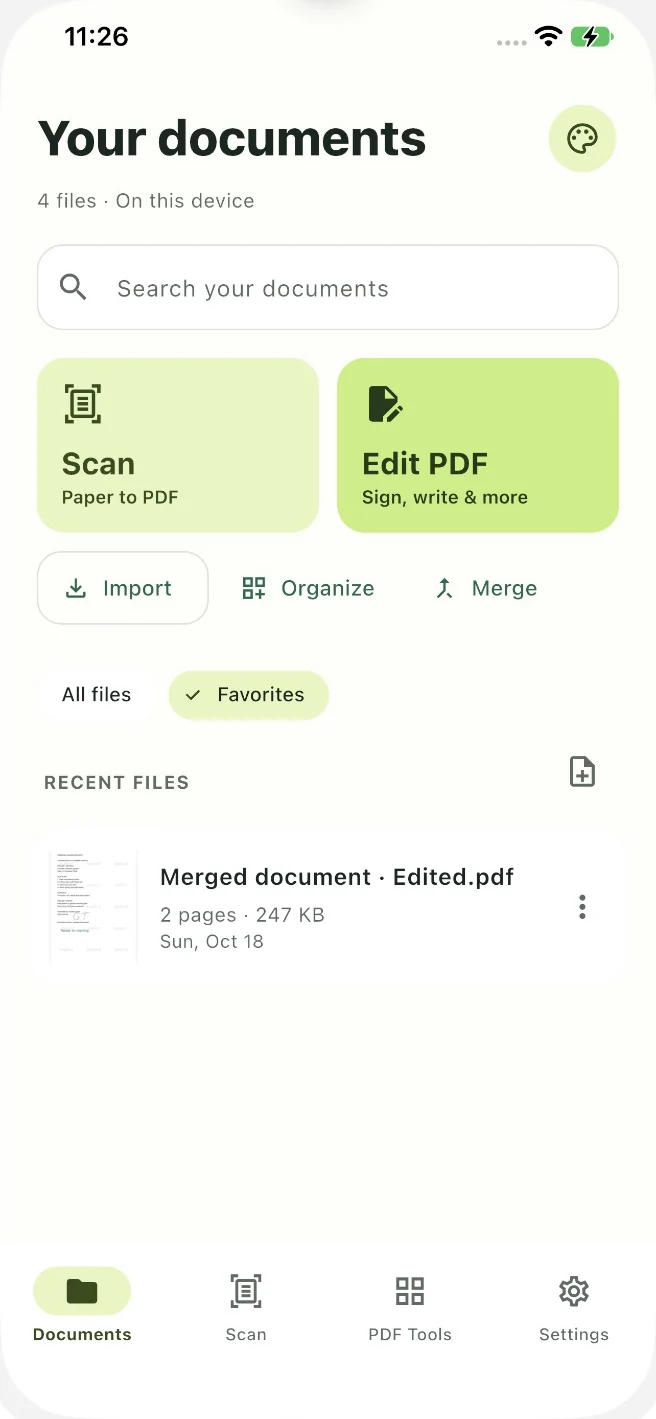
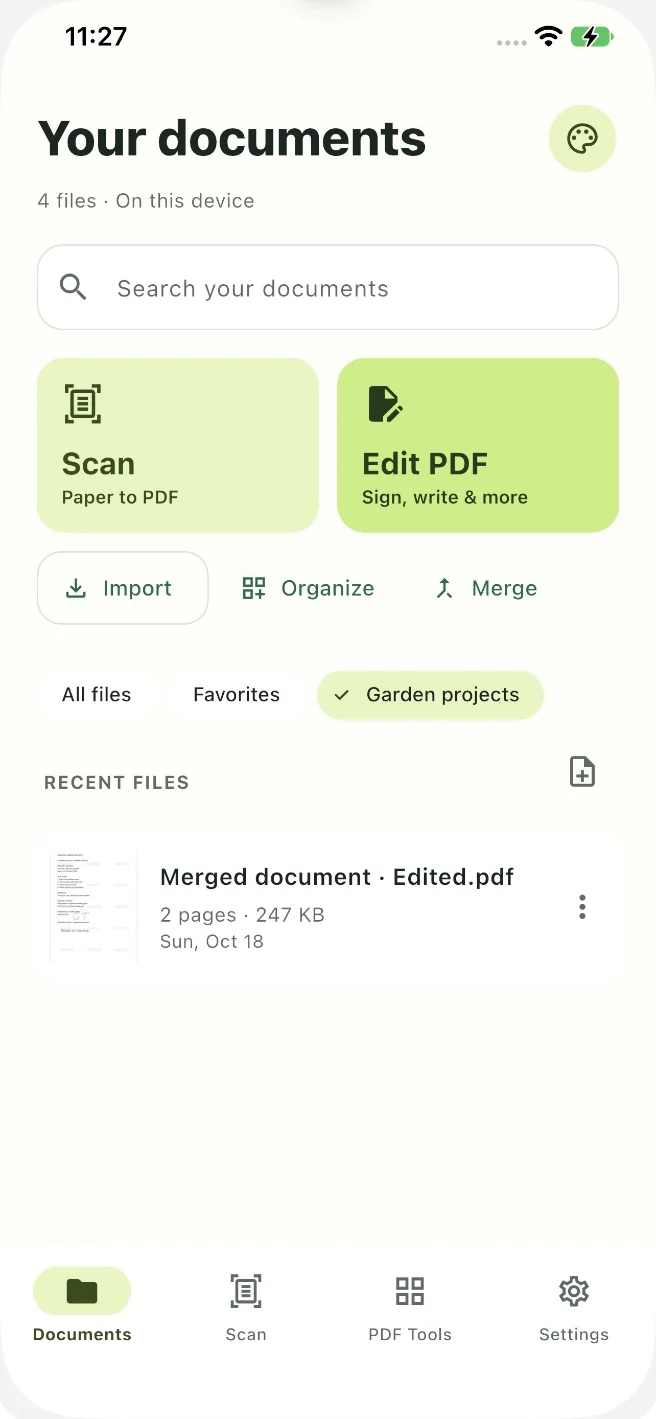
A clear filename is a good start. Add a folder, tags or a favorite mark when you want another way to find a document. These controls are in the three-dot menu beside each file in Documents.
- Choose Add to favorites for a frequently used document. Tap the Favorites chip to show marked files.
- Choose Move to folder and enter a name, such as Garden projects. Tap Save, then use the folder chip in Documents to see its files.
- Choose Edit tags to add descriptive labels separated by commas. Search can match names, tags and text already saved with a document.
- Use Move to Trash when you want to remove a file from the active library. Tap Undo in the confirmation if you moved the wrong one.
- To recover it later, open Settings → Trash and tap Restore beside the file. Return to Documents and choose All files or clear your search if needed.
Get startedChoose your theme and find help inside Docenity
Personalize the interface and open offline instructions whenever you need them.
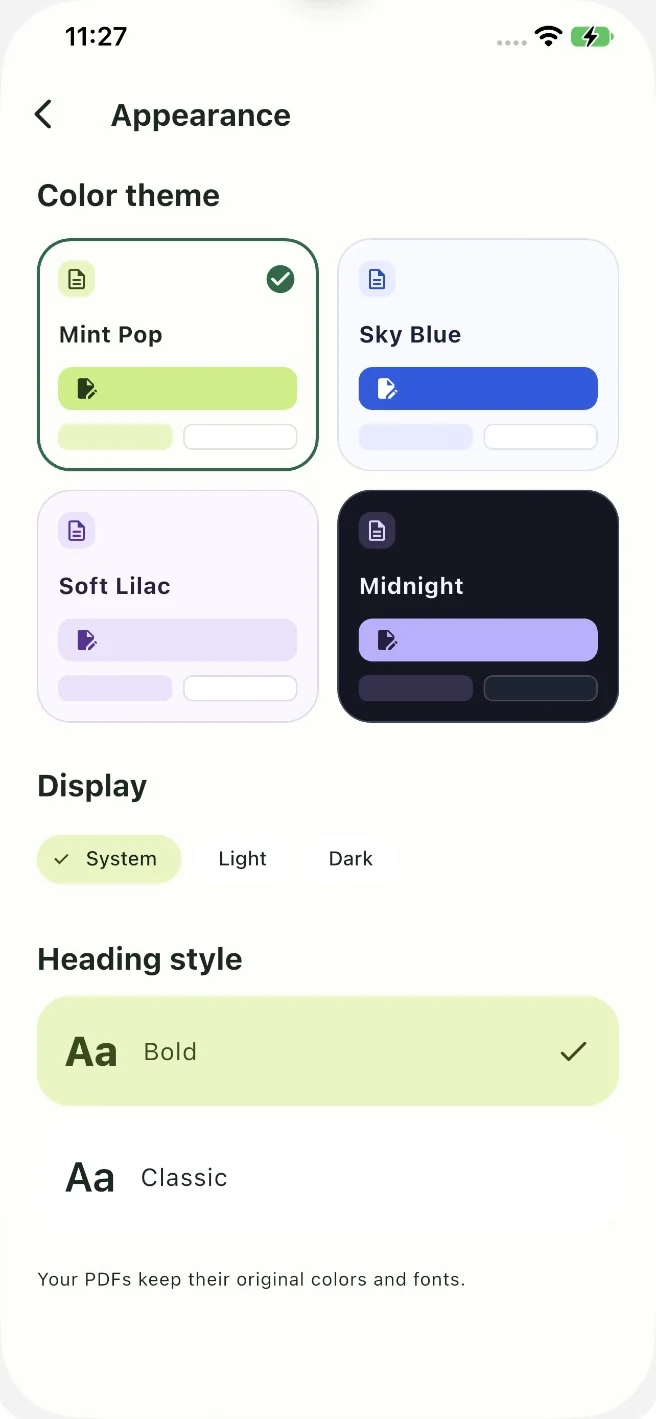
Docenity’s Appearance settings change the app around your document. They do not recolour a PDF or replace its fonts. The built-in Help Center is also available offline, so you can check a tool’s instructions while you work.
- Open Settings → Appearance.
- Choose Mint Pop, Sky Blue, Soft Lilac or Midnight. Select Bold or Classic for the app’s headings.
- Mint Pop, Sky Blue and Soft Lilac offer System, Light and Dark display modes. Midnight uses a dark interface.
- Return to Settings and open Help Center. Search for a term such as signature, trash or Word, or browse a category.
- Open an article to read its steps. For the privacy policy and Credits & Acknowledgements, open Settings → About.
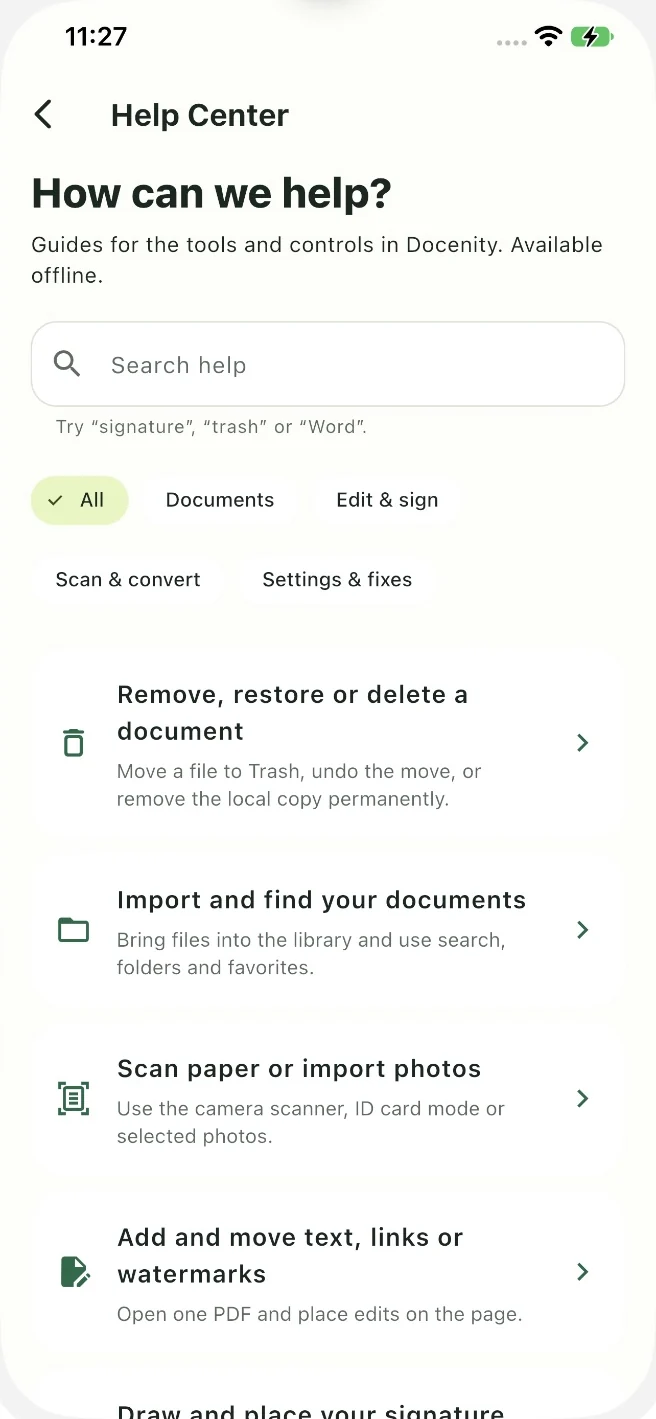
Screenshots show Docenity on iPhone with fictional sample documents. On iPad, the layout may use the extra space differently. Toolbar items can also appear under More depending on the available space and app version.
A few more answers.
Saving, signatures, scanned forms and device requirements, explained plainly.
Do I need an account, subscription or trial?
No Docenity account is required. Docenity is a paid App Store download with the supported tools included, without a trial, subscription or in-app purchases. Check your App Store storefront for current local pricing.
Can I use Docenity offline?
Core document processing runs on your device. Download a cloud-provider file before working offline. App installation, Apple language or model downloads, support email and destinations you choose for sharing can need an internet connection.
Where is my saved PDF?
Open Documents and look for the new copy. Editing can add Edited to the filename; other tools show the output name in their completion sheet. If it is not visible, choose All files and clear the search or folder filter.
Why is Save unavailable?
Save becomes available when there are changes to save. Choosing a tool alone may not add an item: after Place on page, tap the PDF to position it. After arranging pages, tap Apply, then Save in the editor.
How do I close the More menu?
Tap Close at the top of the editor’s More sheet. You do not have to select a tool to return to the page.
Why can’t I type into a scanned form?
A scan is often a picture of a form, without interactive fields. Use Text to place an answer over the blank, or create a text field and save it before filling it. Fill form uses supported fields already present in the PDF.
Why did a signed page lose selectable text or form fields?
Docenity saves a page with a signature as an image to preserve its appearance. Interactive fields and links on that page are flattened. Complete fields before signing and keep the original if you need to reuse its text or fields.
Why does Text workspace show no useful text?
Check that you selected the intended PDF and tapped Open text workspace. An image-only scan may need OCR first. Recognition quality depends on the source: clear, upright text is easier to recognize than a blurred or curved page.
Does a watermark protect a PDF from being copied?
A watermark adds a visible label or pattern. It does not control access or prevent copying. Review how it looks on the saved pages before sharing the document.
Why did Optimize PDF not make my file smaller?
Optimize PDF is a lossless optimization tool. A PDF that is already efficiently stored may not become smaller. It is separate from the removed Compress PDF tool and does not promise a particular size reduction.
Does PDF-to-Word preserve my exact page design?
Office conversions are text-based. They do not reconstruct the original page layout, charts, embedded images or complex tables. Use the PDF when preserving its visual design is the priority, and check exported text before using it.
Why is translation or the private assistant unavailable?
Translation and table recognition require iOS or iPadOS 26 or later. Translation also needs the matching language packs downloaded in Apple Translate. The optional private assistant needs compatible Apple Intelligence hardware, version 26 or later, and an enabled, downloaded model. Availability varies by device, language and region; there is no cloud AI fallback.
What should I check if the scanner does not open?
Check Docenity’s camera access in iOS Settings. Use a physical device with a supported camera. Import photos instead is another route when you already have an image of the document.
Can I restore a file after moving it to Trash?
Yes, while the file remains in Trash. Open Settings → Trash, find it and tap Restore. Permanent deletion is different: once confirmed, Docenity cannot undo it.
Do the app’s theme colours change my PDF?
No. Appearance changes Docenity’s interface and heading style. The original colours and fonts in your PDF stay unchanged.
Still a little stuck?
Tell Dreamsnity what you were trying to do, which button you tapped and what happened next. Include your device model, iOS or iPadOS version, and Docenity version if available.
A screenshot of the issue can help. Hide private details first; a blank or fictional sample is usually enough to explain a document problem.
Email Docenity supportOpens a draft in your email app. You choose what to send.