

MEET DOCENITY · iPHONE & iPAD

Docenity — Private PDF Scanner & EditorYour PDFs.
A happier place.

Scan, edit, sign and merge PDFs on iPhone and iPad. Your documents are processed on your device, with no Dreamsnity account to create.

Buy once. No subscription. No in-app purchases.

  • On-device processing
  • No app account
  • No subscriptions
Little helper. Big possibilities.

Paperwork just made a new friend.

COME ON IN. TAKE A LOOK AROUND.

Serious tools.
A friendly little face.

A little peek at every possibility. Explore the App Store screenshots on iPhone and iPad.

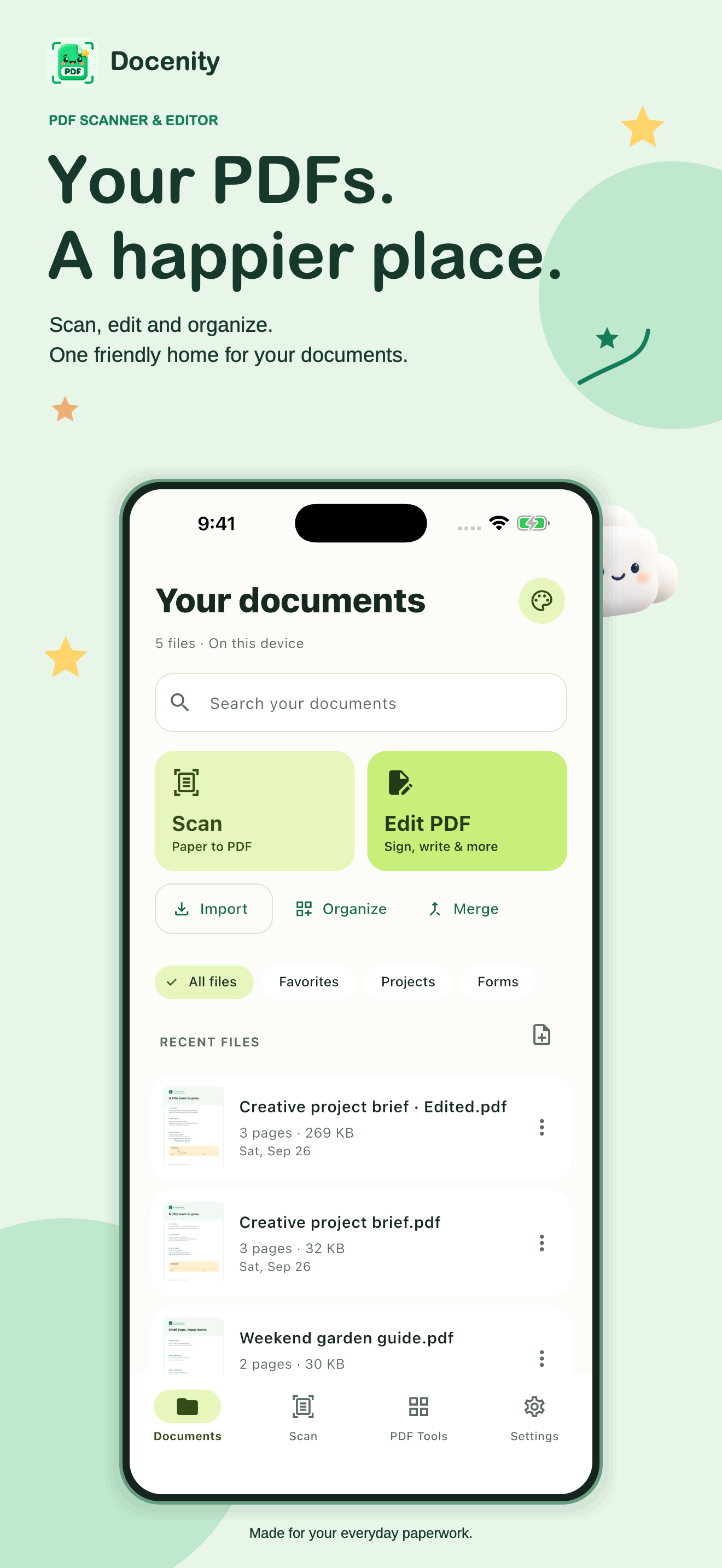
A HAPPY HOME FOR YOUR FILES

A little less searching. A lot more finding.

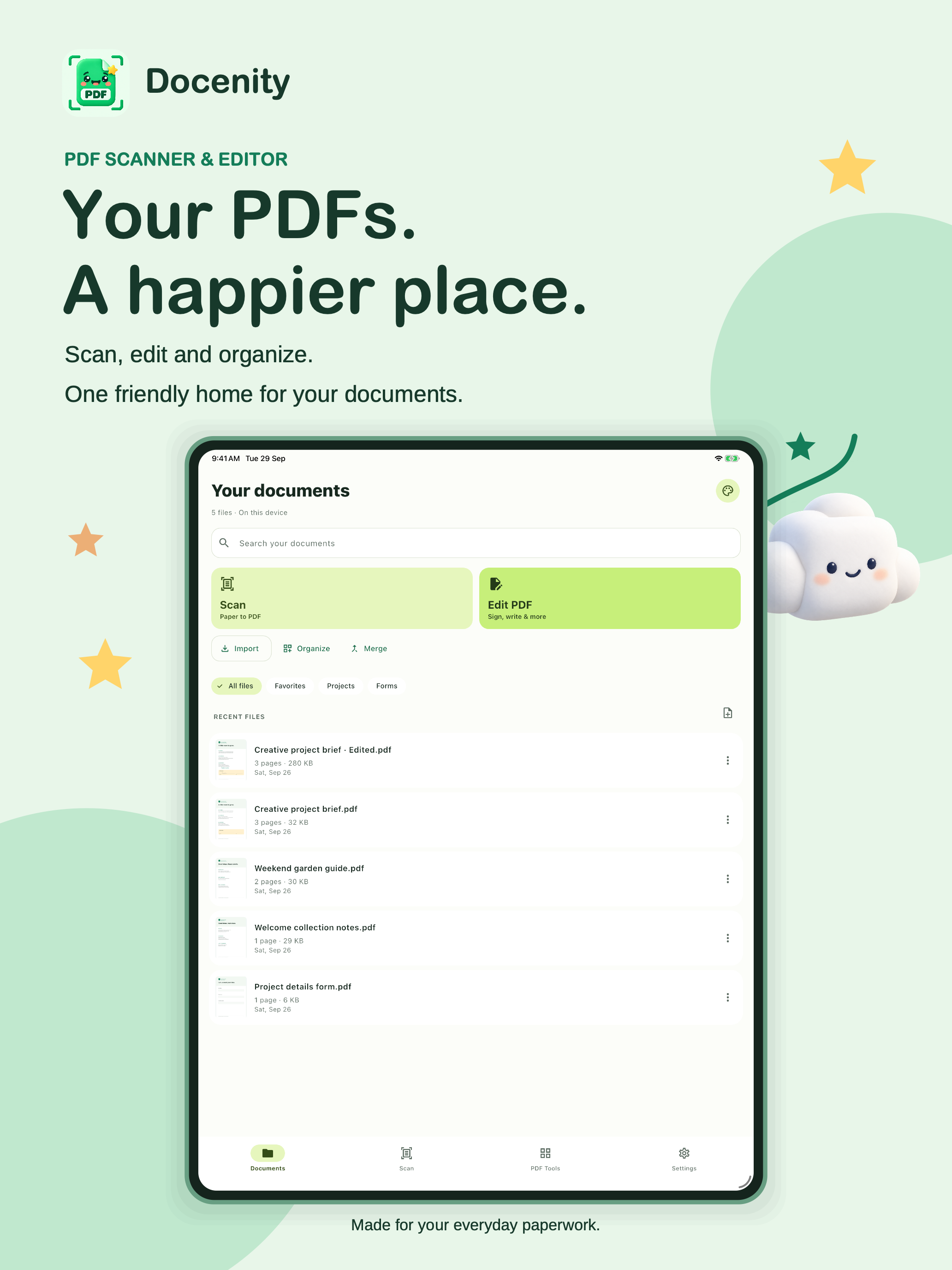
Bring documents into one friendly library. Use folders, tags, favorites and search to keep the next thing you need close by.

  • Import PDFs, photos, Office and text files.
  • Search names, tags and text saved with a document.
  • Rename, duplicate, share or move a file to Trash.
Explore all 48 tools
Docenity’s iPhone library with search, Scan and Edit PDF shortcuts, folders and fictional sample documents. App Store artwork.
Docenity on iPhone · Tap to look closer
Docenity’s iPad library with search, Scan and Edit PDF shortcuts, folders and fictional sample documents. App Store artwork.
Docenity on iPad · Tap to look closer
PAPER IN. POSSIBILITIES OUT.

From paper pile to pocket-sized.

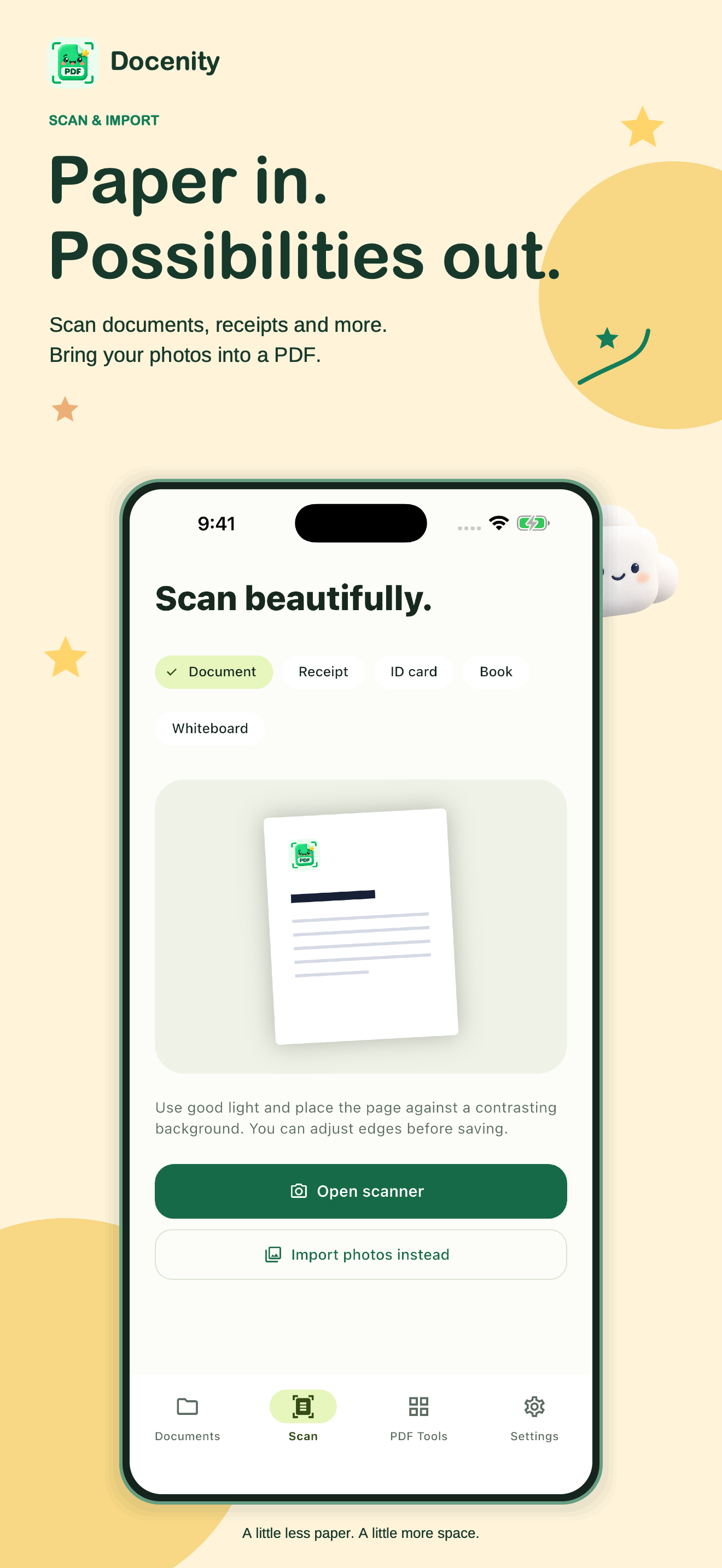
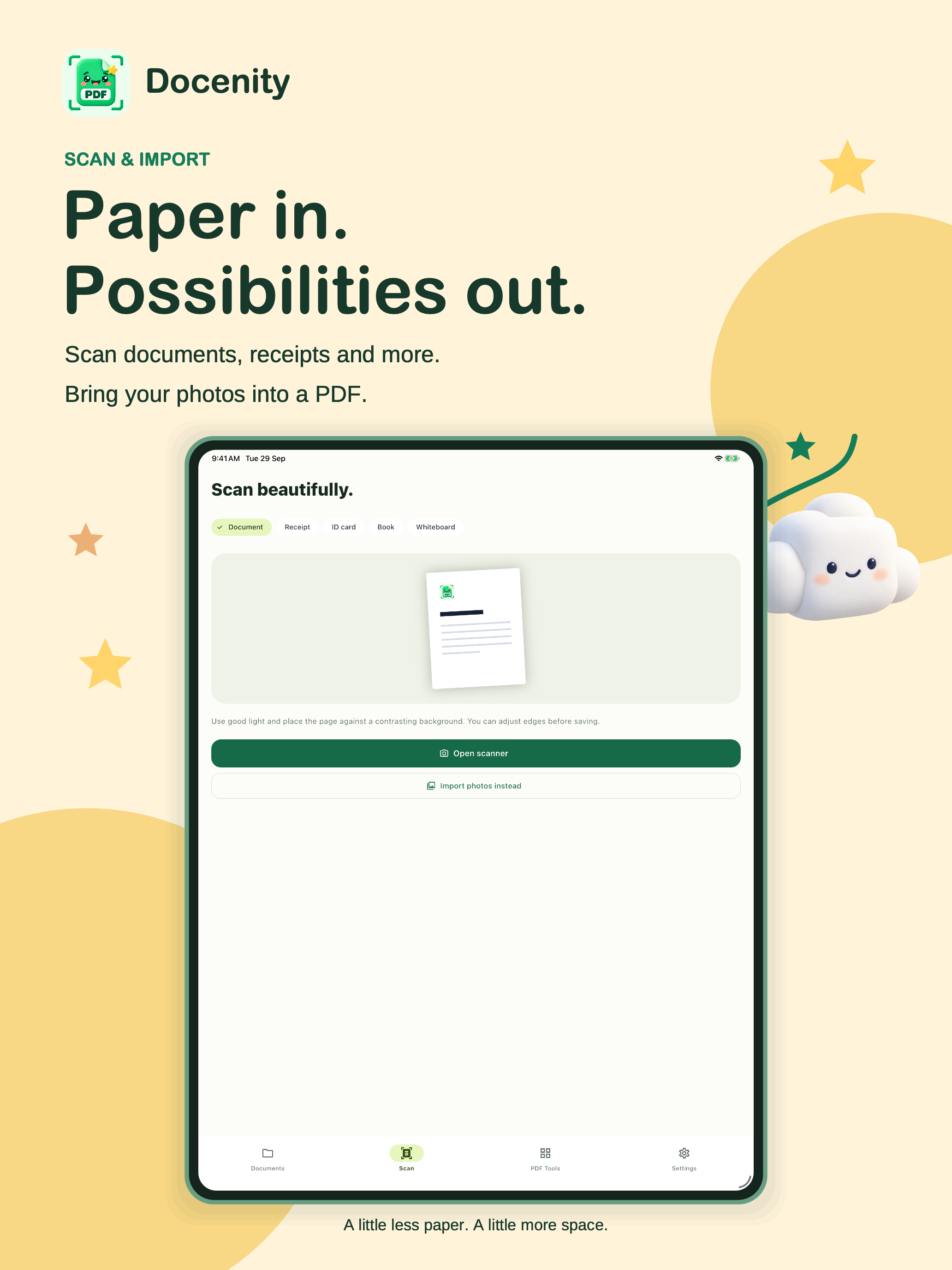
Turn documents, receipts, ID cards, flat book pages and whiteboards into PDFs with Apple’s document scanner. Or start with photos you choose.

  • Capture multiple pages and adjust their edges.
  • Put the front and back of an ID card on one page.
  • Recognize text locally or make a scan searchable.
Explore all 48 tools
Docenity’s Scan screen with Document, Receipt, ID card, Book and Whiteboard modes. App Store artwork.
Docenity on iPhone · Tap to look closer
Docenity’s Scan screen with Document, Receipt, ID card, Book and Whiteboard modes. App Store artwork.
Docenity on iPad · Tap to look closer
ONE PDF. YOUR LITTLE WORKSPACE.

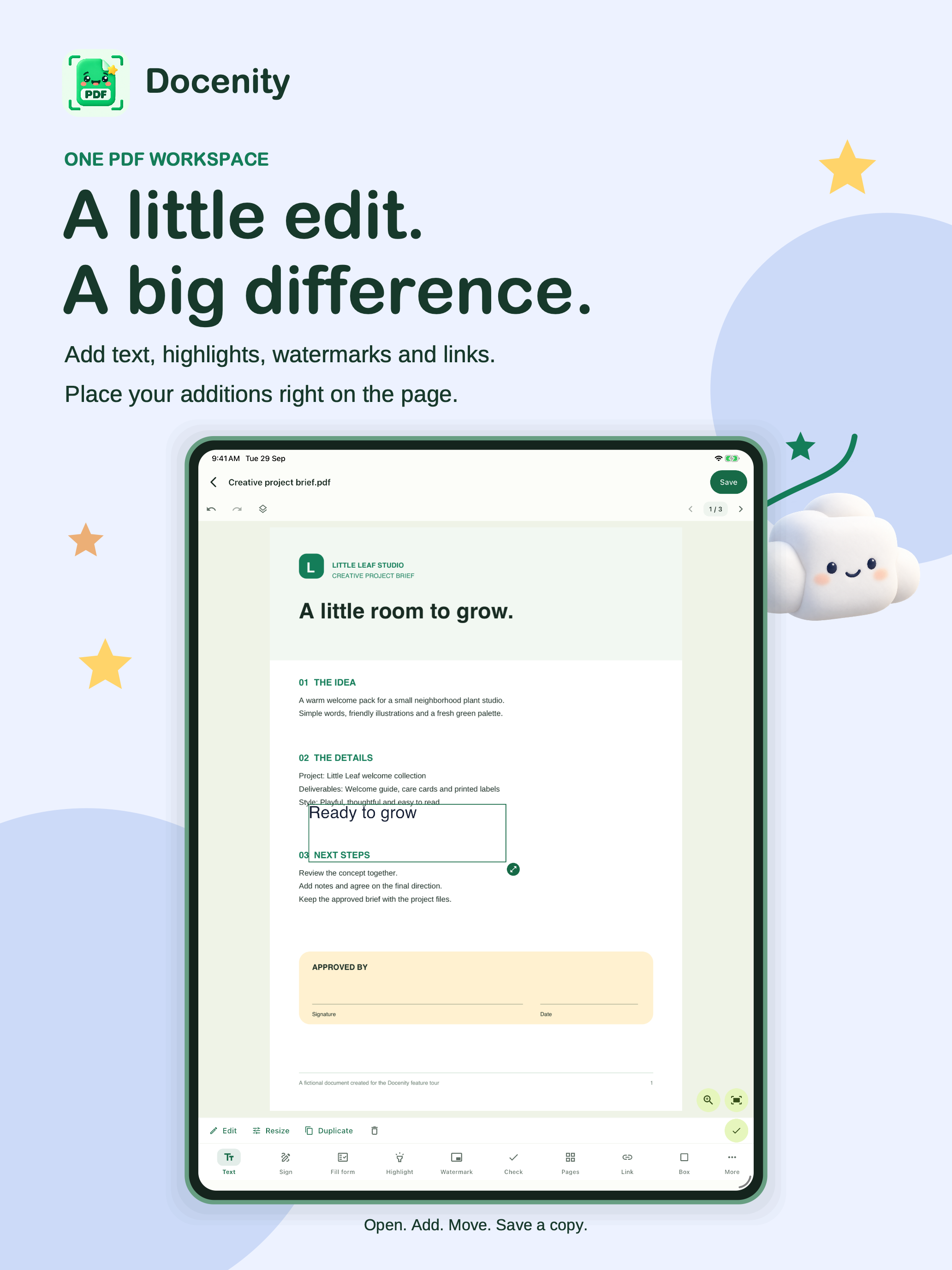
A little edit. A big difference.

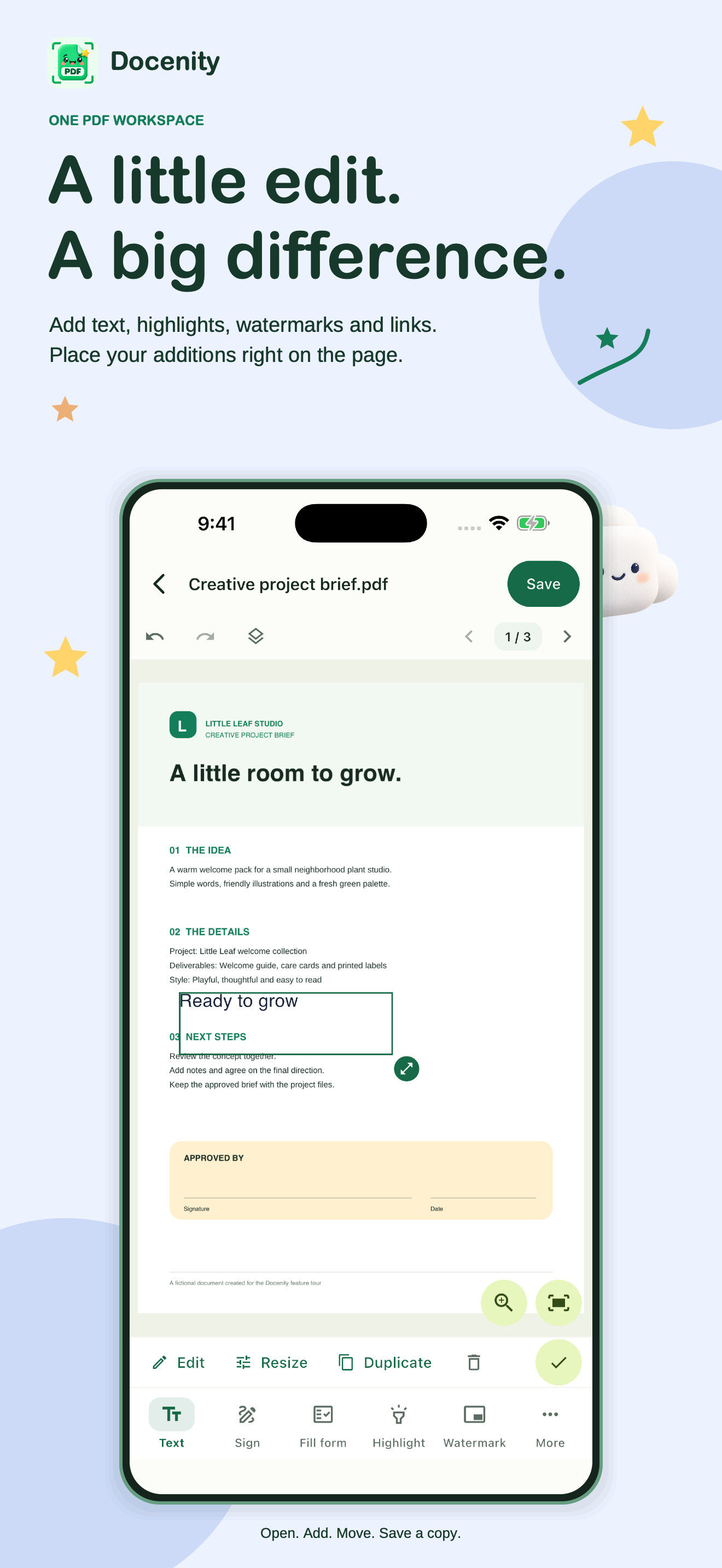
Tap a PDF to open its editor. Add text, highlights, boxes, links and your own repeating watermark. Move and resize additions on the page, then tap Save for a new copy while keeping your original.

  • Swipe the bottom toolbar to find more tools. Close the More menu without losing your edits.
  • Zoom in for precise placement. Undo and redo before saving.
  • Fill supported PDF forms, or place Text and Check marks over a scanned form.
Explore all 48 tools
Docenity PDF editor with a text addition selected on a fictional creative project brief. App Store artwork.
Docenity on iPhone · Tap to look closer
Docenity PDF editor with a text addition selected on a fictional creative project brief. App Store artwork.
Docenity on iPad · Tap to look closer
MAKE YOUR MARK

Draw it. Place it. Make it yours.

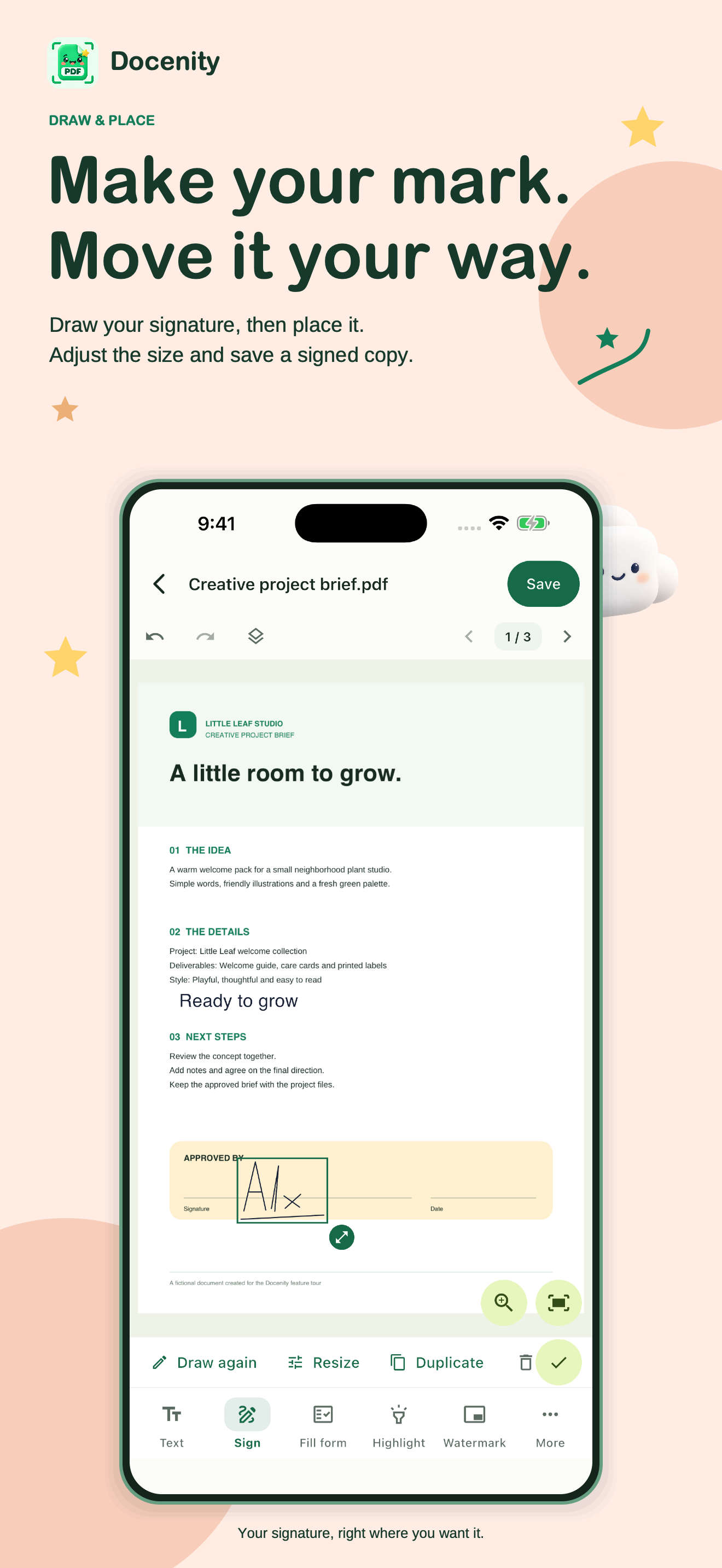
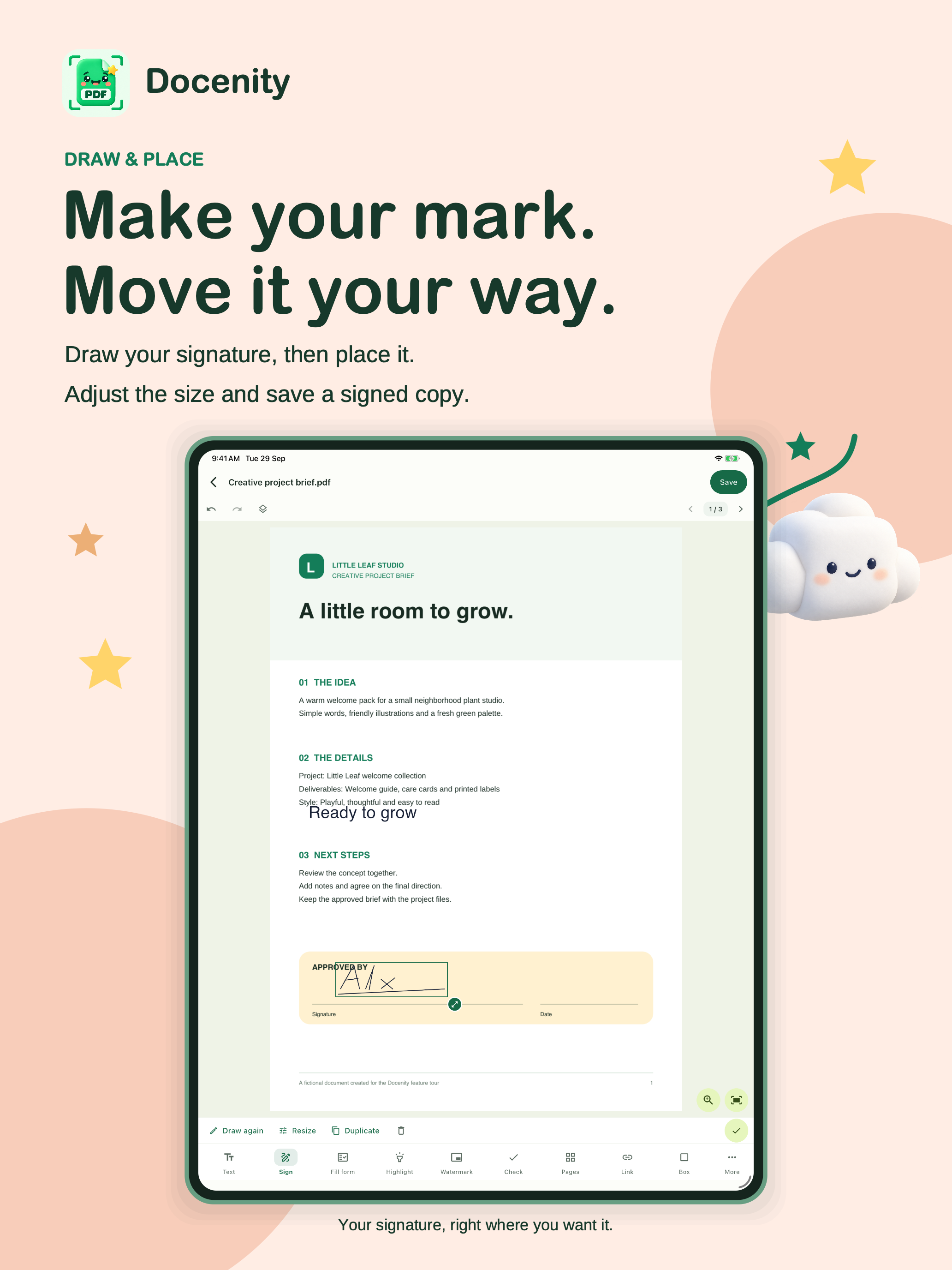
Draw your signature, move it into place and adjust its size. Save a signed copy while keeping the source PDF in your library.

  • Undo or clear the drawing before placing it.
  • Optionally remember your signature on this device.
  • Signing adds a visible mark; it does not verify identity or create a digital signing certificate.
Explore all 48 tools
A fictional handwritten signature being positioned and resized in Docenity’s PDF editor. App Store artwork.
Docenity on iPhone · Tap to look closer
A fictional handwritten signature being positioned and resized in Docenity’s PDF editor. App Store artwork.
Docenity on iPad · Tap to look closer
EVERY PAGE IN ITS PLACE

A happy little shuffle.

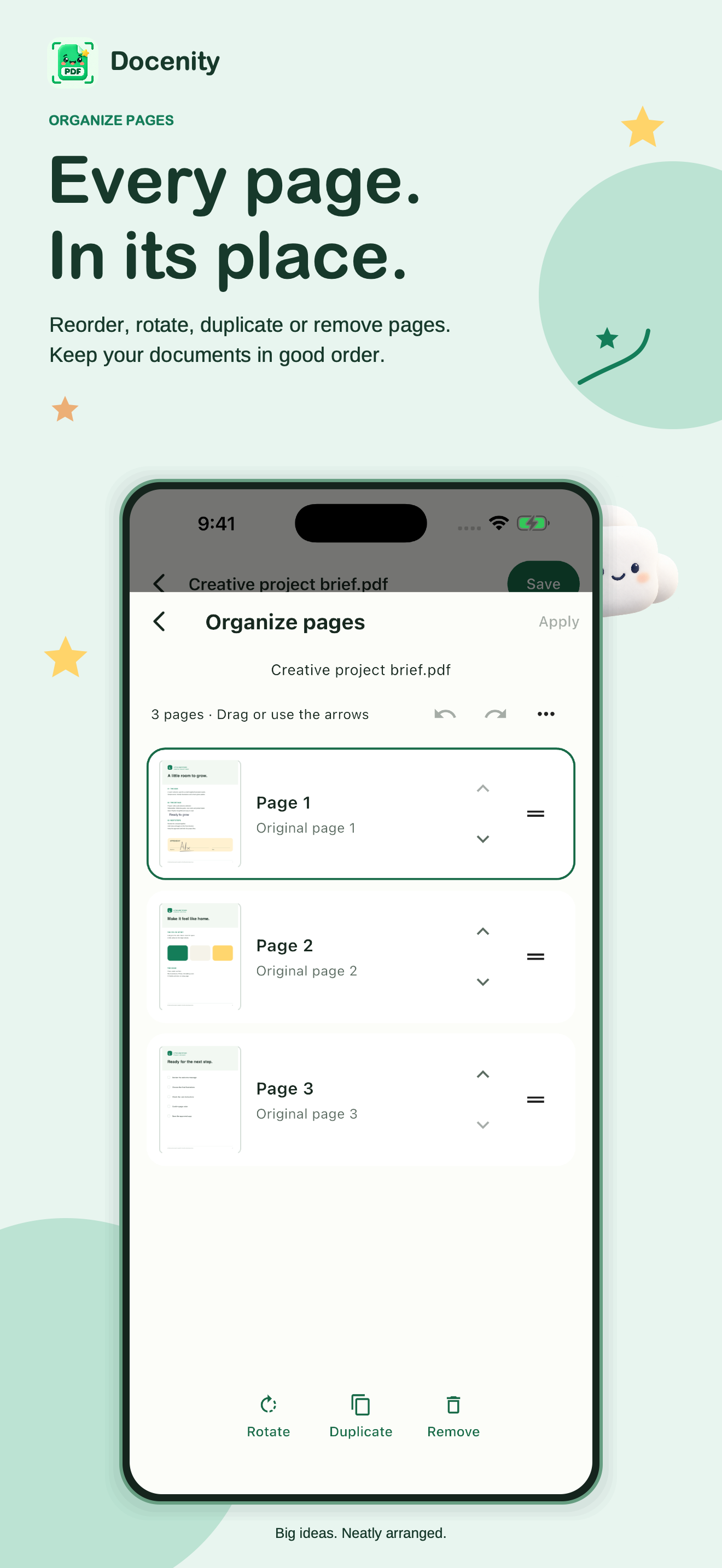
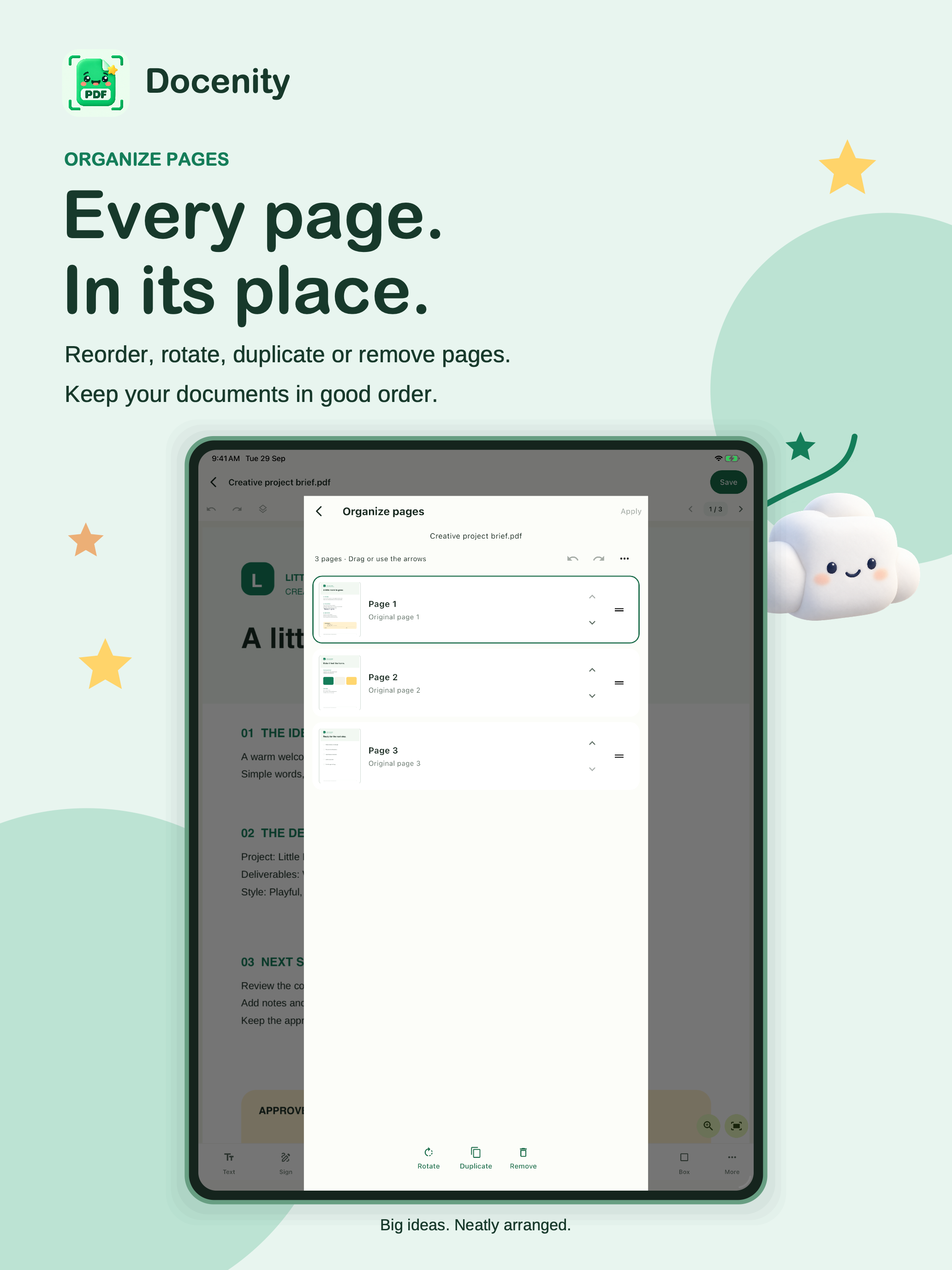
See your pages as thumbnails, then put them in the order that makes sense. Bring PDFs together, split them apart or keep just the pages you need.

  • Reorder, rotate, duplicate, remove or reverse pages.
  • Merge PDFs, extract pages or insert a blank page.
  • Crop, resize or prepare a booklet for printing.
Explore all 48 tools
Docenity’s Organize pages screen showing three page thumbnails and rotate, duplicate and remove controls. App Store artwork.
Docenity on iPhone · Tap to look closer
Docenity’s Organize pages screen showing three page thumbnails and rotate, duplicate and remove controls. App Store artwork.
Docenity on iPad · Tap to look closer
A FRESH FORMAT

More ways to use what’s inside.

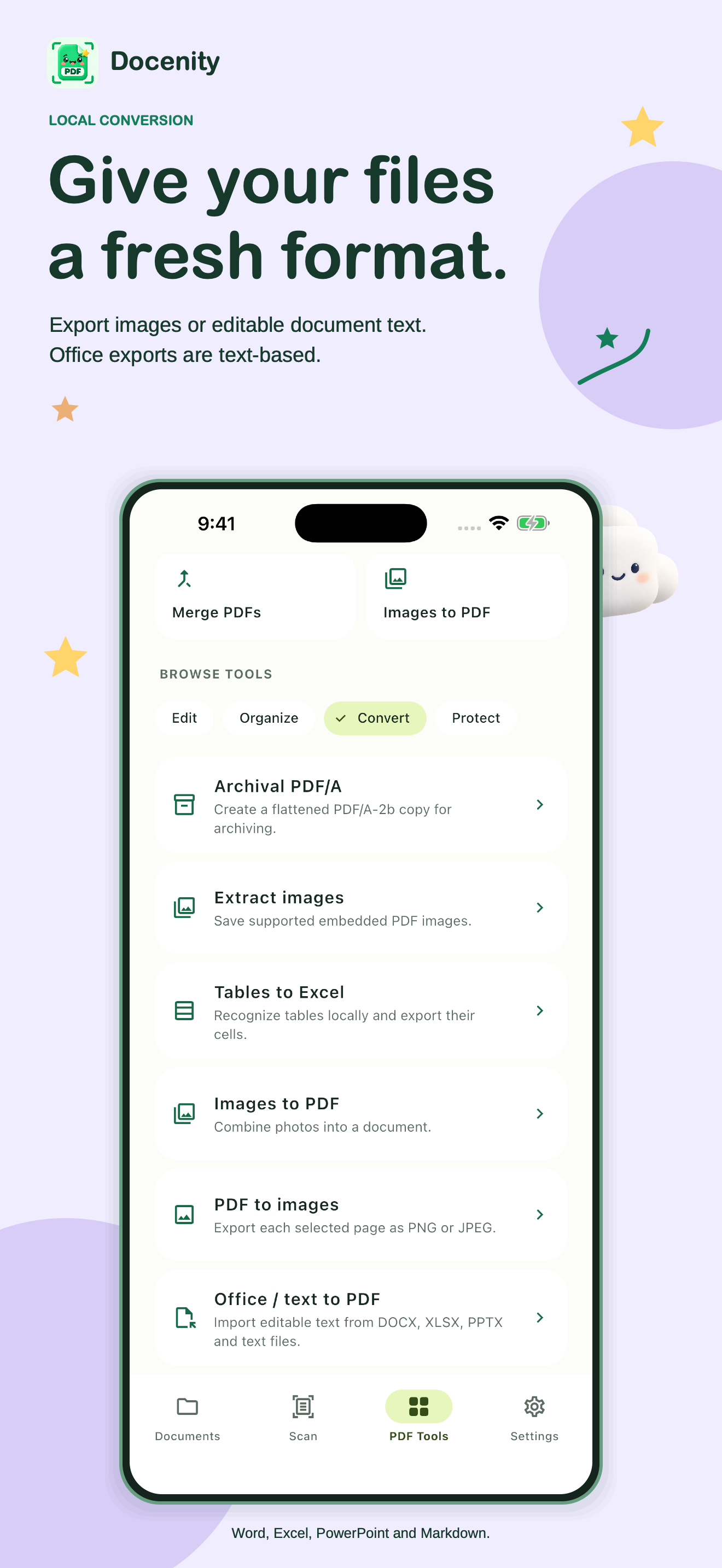
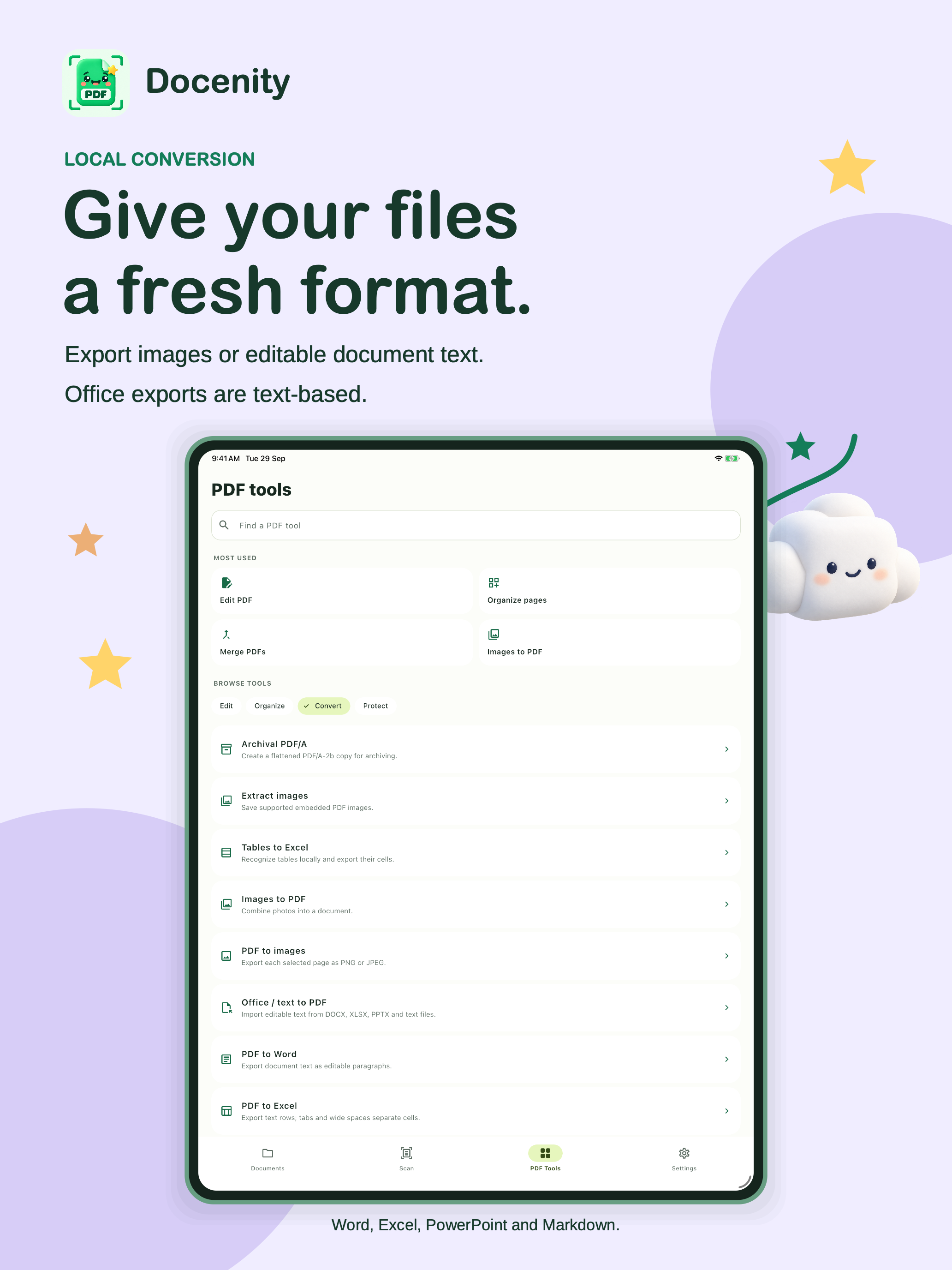
Export page images or editable text for Word, Excel, PowerPoint and Markdown. Bring text from DOCX, XLSX and PPTX files into a new PDF.

  • Office conversion is text-based; original layouts, charts and images are not recreated.
  • Export PNG or JPEG pages and supported embedded images.
  • Tables to Excel uses local recognition on iOS 26 or later.
Explore all 48 tools
Docenity’s conversion tools for images, Word, Excel, PowerPoint and Markdown. App Store artwork.
Docenity on iPhone · Tap to look closer
Docenity’s conversion tools for images, Word, Excel, PowerPoint and Markdown. App Store artwork.
Docenity on iPad · Tap to look closer
LITTLE TASKS. LOTS OF TOOLS.

A helpful little toolbox.

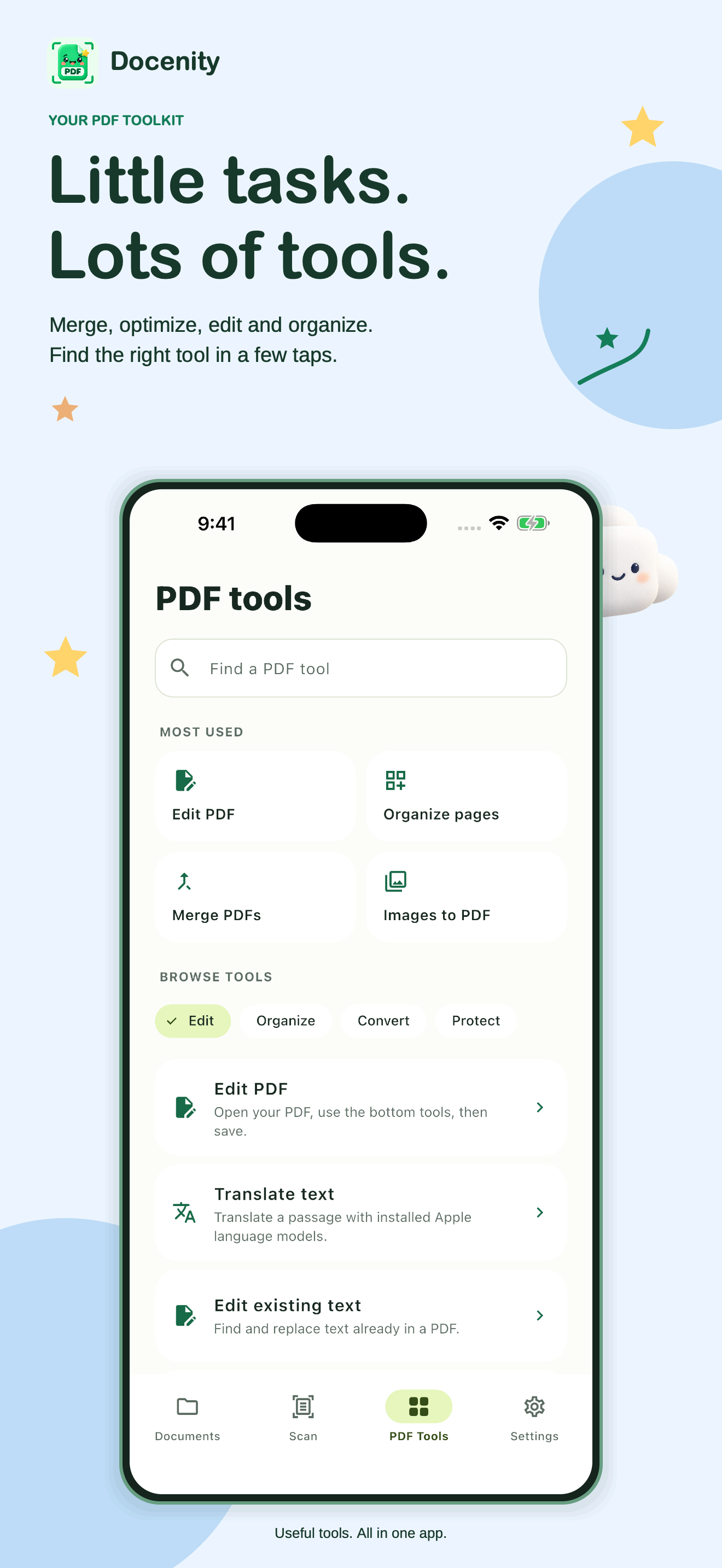
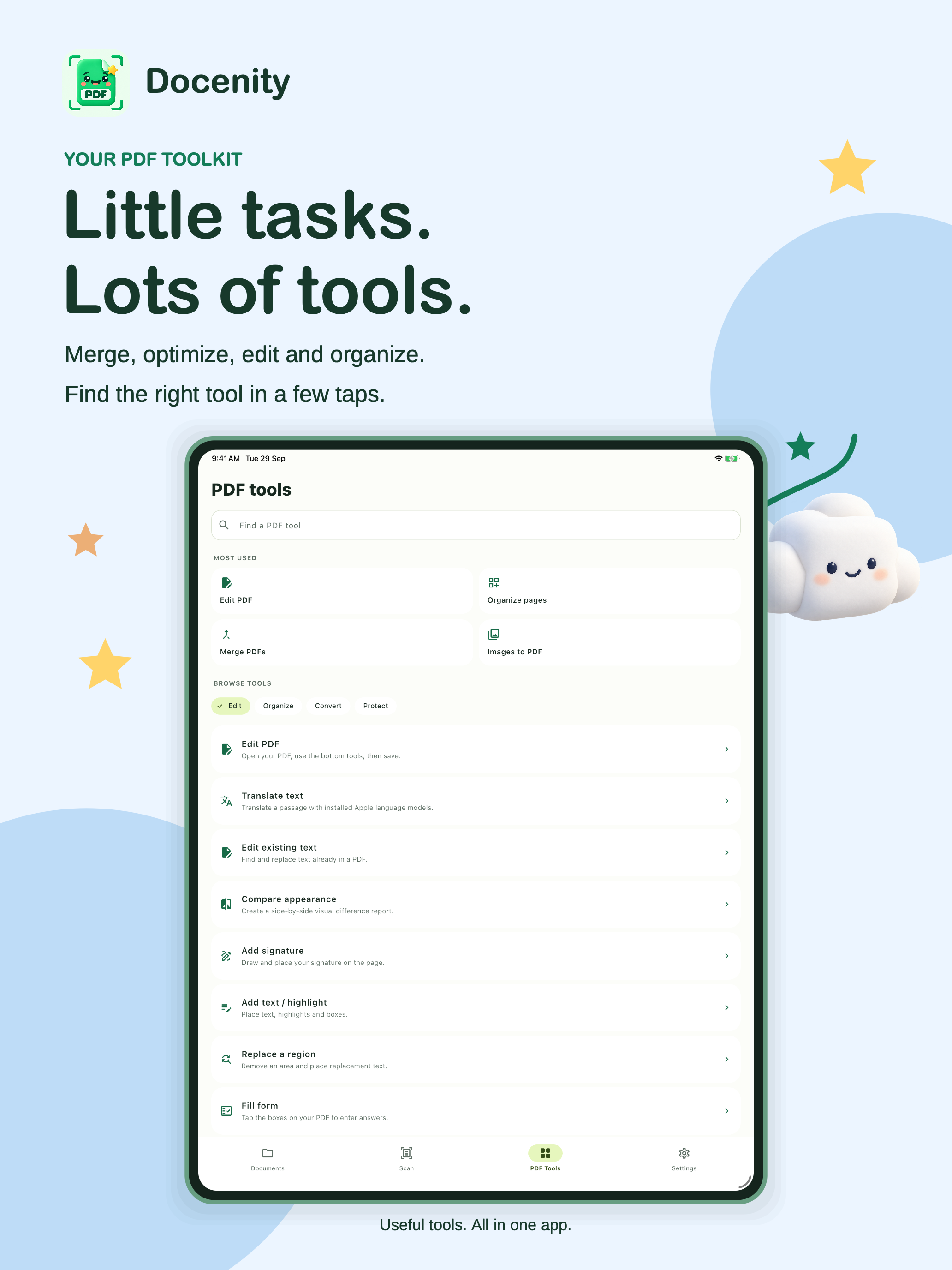
Meet 48 tools for editing, organizing, converting and preparing your documents. Search for the one you need, or explore the collections at your own pace.

  • Optimize supported PDFs while keeping text and page objects; already optimized files may not shrink.
  • Compare document text or page appearance.
  • Flatten a copy, prepare a booklet or place several pages on a sheet.
Explore all 48 tools
Docenity’s PDF Tools screen with tool search and editing, organizing and conversion collections. App Store artwork.
Docenity on iPhone · Tap to look closer
Docenity’s PDF Tools screen with tool search and editing, organizing and conversion collections. App Store artwork.
Docenity on iPad · Tap to look closer
YOUR DOCUMENTS. YOUR SPACE.

Close to you. On your device.

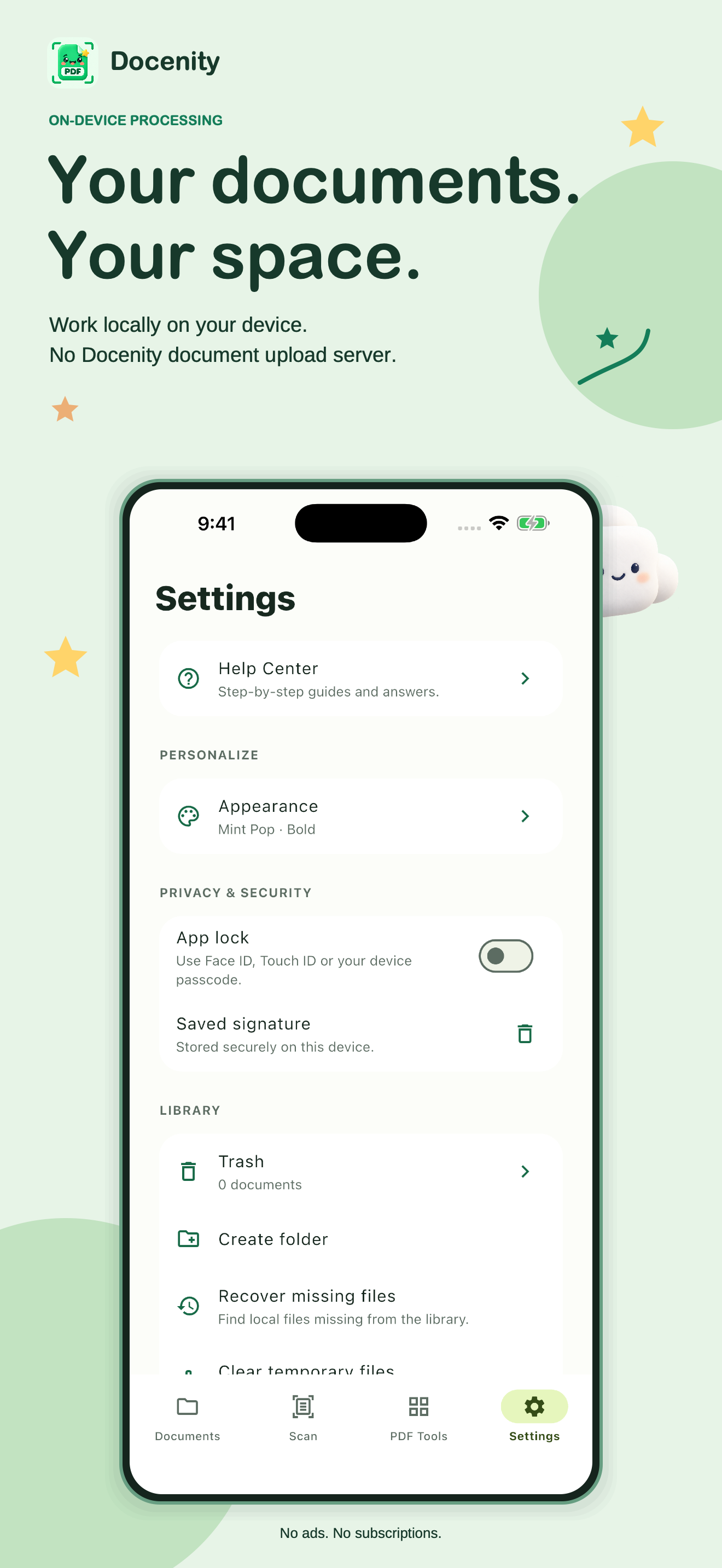
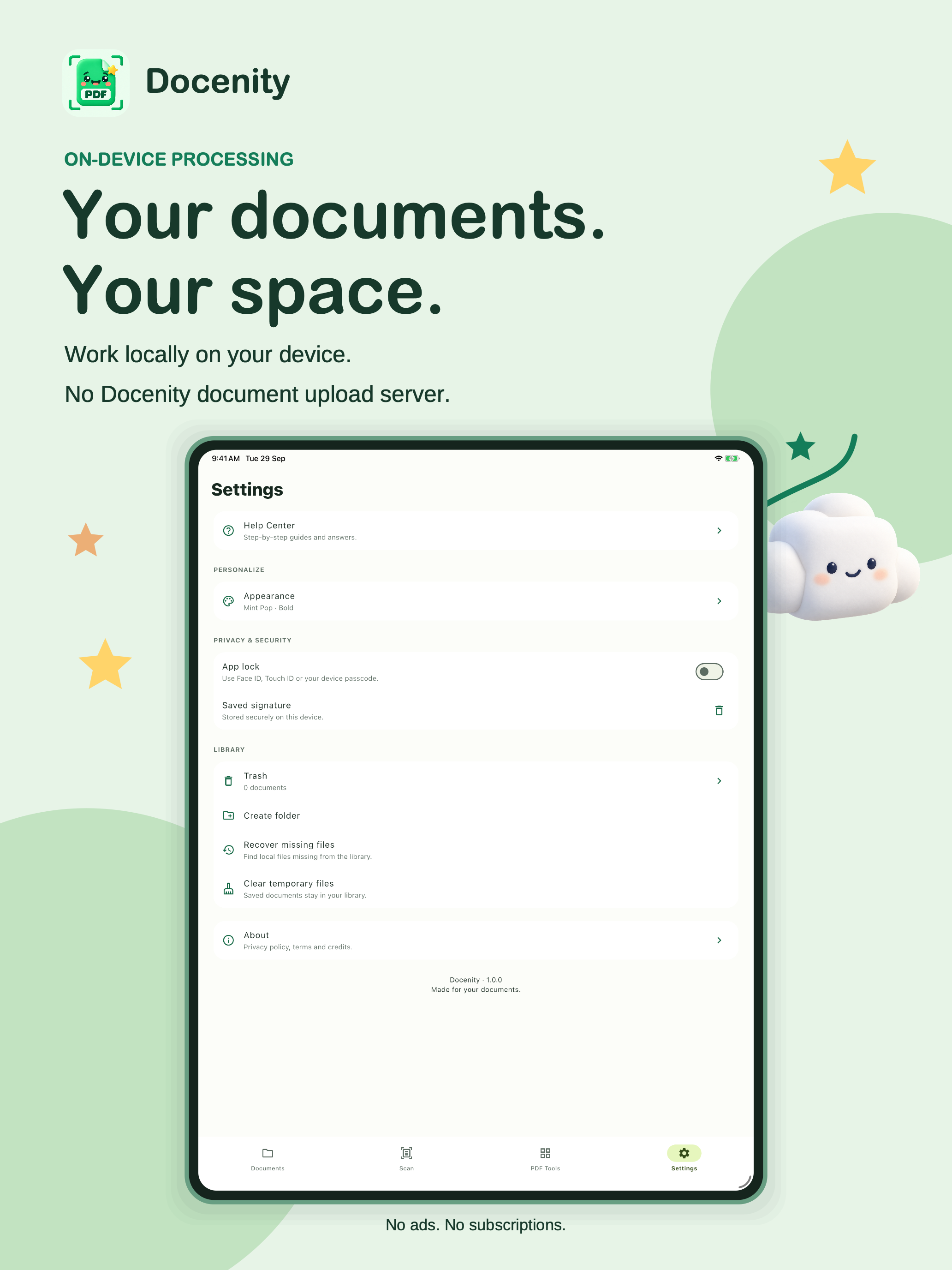
Your library stays on your device. There is no Docenity account, document upload server, advertising or third-party analytics in the app.

  • Settings → App lock uses Face ID, Touch ID or your device passcode.
  • Use Password protect separately when you want a password on a PDF.
  • Manage Trash, saved signatures and temporary files in Settings. Exports and device backups follow your chosen destinations and settings.
Explore all 48 tools
Docenity Settings showing App lock, saved signature controls and local library settings. App Store artwork.
Docenity on iPhone · Tap to look closer
Docenity Settings showing App lock, saved signature controls and local library settings. App Store artwork.
Docenity on iPad · Tap to look closer
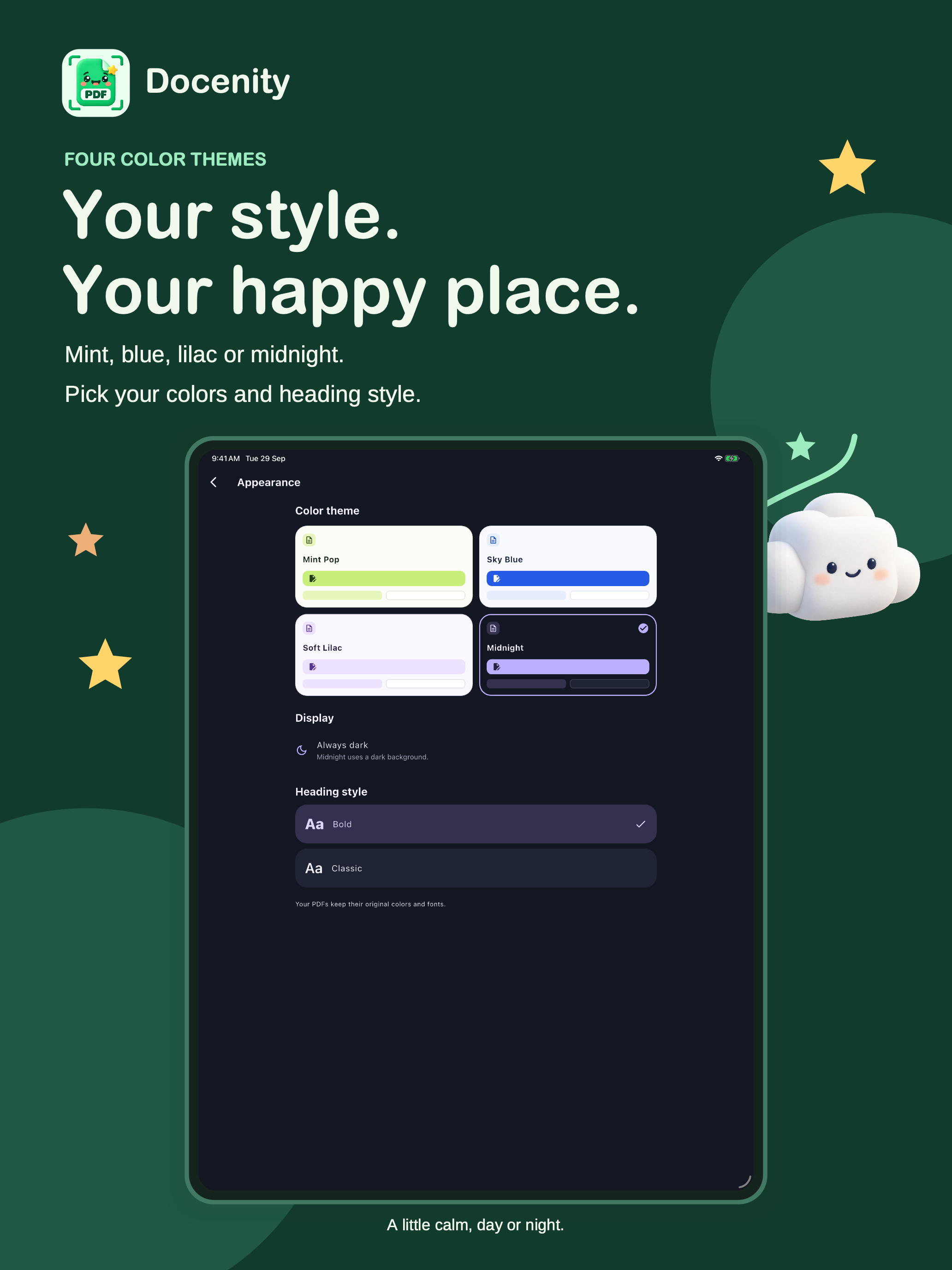
FOUR COLORS. YOUR KIND OF CALM.

Make yourself at home.

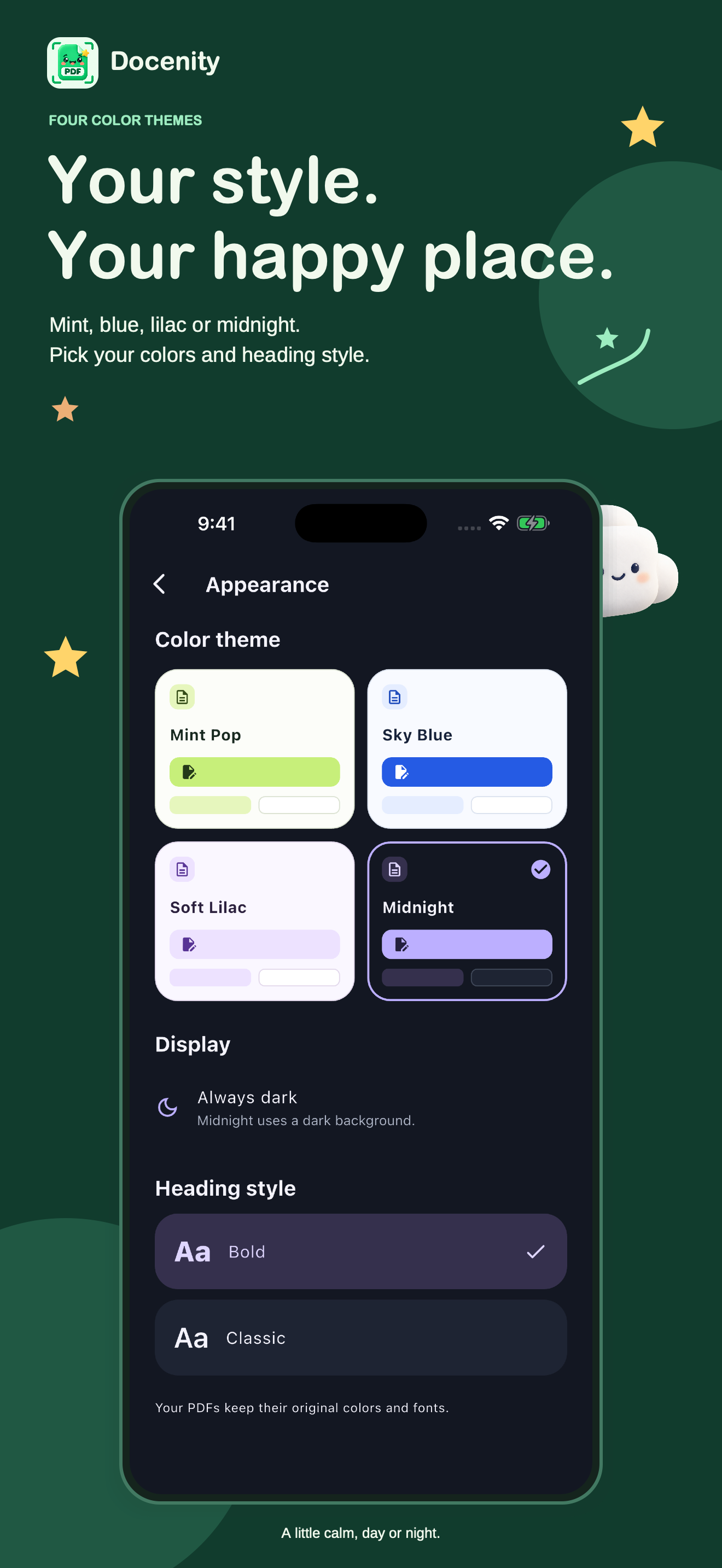
Mint Pop, Sky Blue, Soft Lilac or Midnight. Choose your colors and pair them with Bold or Classic headings in Settings → Appearance.

  • Mint Pop, Sky Blue and Soft Lilac support light, dark or system appearance.
  • Midnight keeps a dark interface.
  • Changing the app theme or heading style does not change your documents’ colors or fonts.
Explore all 48 tools
Docenity Appearance showing Mint Pop, Sky Blue, Soft Lilac and Midnight themes with Bold and Classic headings. App Store artwork.
Docenity on iPhone · Tap to look closer
Docenity Appearance showing Mint Pop, Sky Blue, Soft Lilac and Midnight themes with Bold and Classic headings. App Store artwork.
Docenity on iPad · Tap to look closer
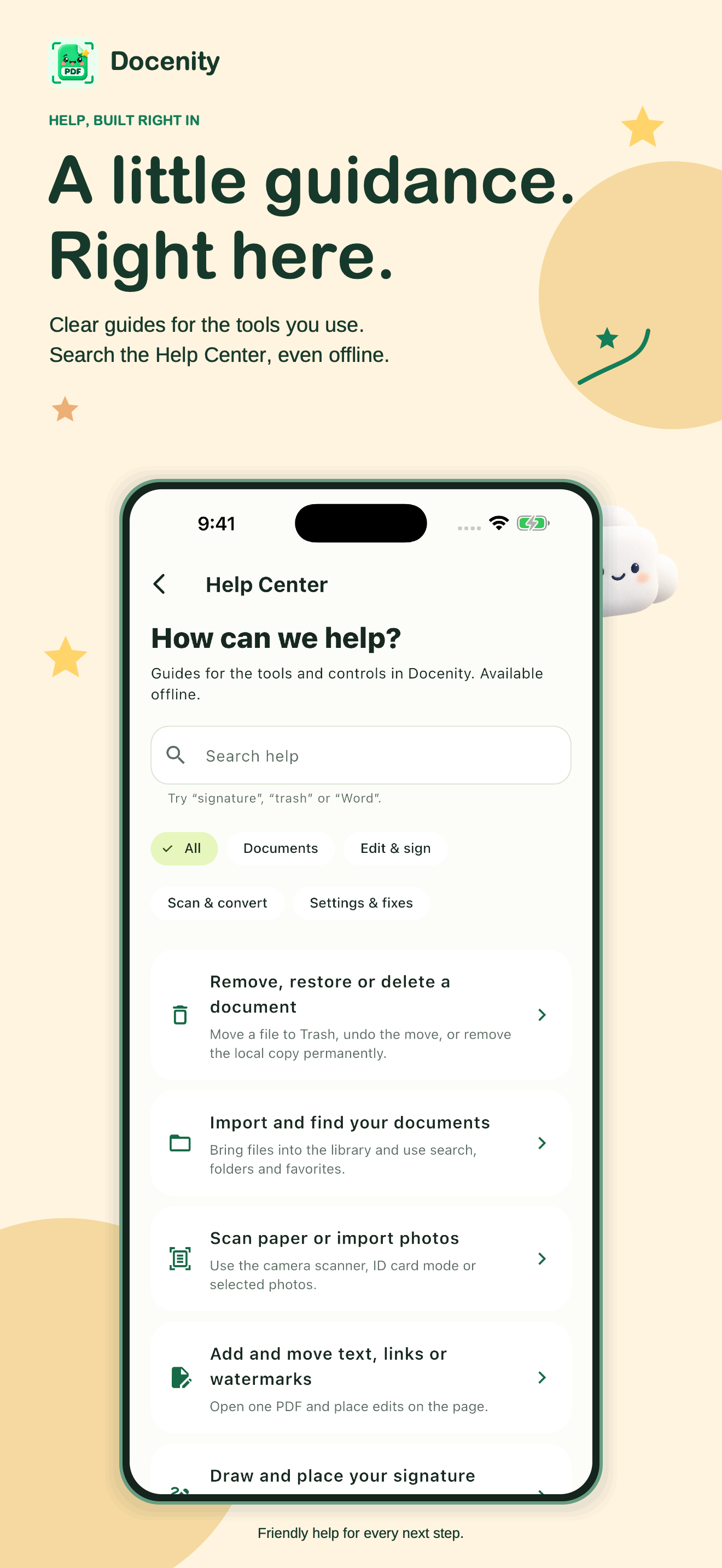
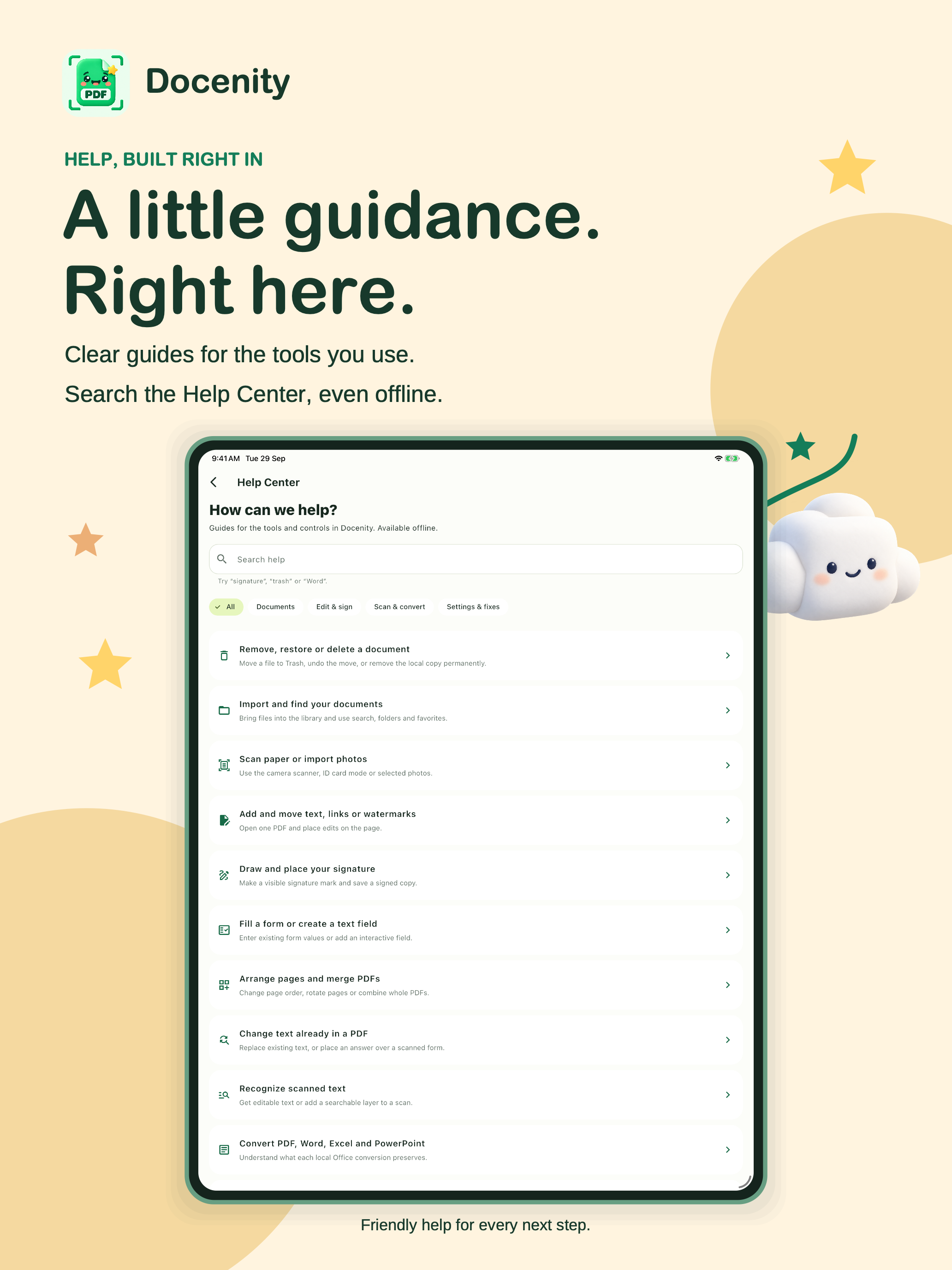
A LITTLE GUIDANCE. RIGHT HERE.

A helping hand in your pocket.

Search the offline Help Center for clear steps on scanning, editing, signatures, saving, sharing and looking after your library.

  • Text workspace extracts selectable text, or uses local recognition when a PDF has no selectable text. Review recognized words before using them.
  • Clean up text, count words, find and replace, read aloud, or save as text or PDF.
  • Translate with installed Apple language packs, or use the optional on-device Private assistant on supported devices.
Explore all 48 tools
Docenity’s offline Help Center with search and guides for document tools, signatures and library management. App Store artwork.
Docenity on iPhone · Tap to look closer
Docenity’s offline Help Center with search and guides for document tools, signatures and library management. App Store artwork.
Docenity on iPad · Tap to look closer
THE LITTLE THINGS THAT MAKE IT YOURS

Right at home. Every day.

01 / YOUR SPACE

A tidy little library.

Folders, tags, favorites and local search. Create a PDF from text, preview your files, and keep original documents alongside saved copies.

Trash includes Undo and Restore. Recover missing files looks for unlisted files in the local document folder.

02 / YOUR RHYTHM

Colors that feel like you.

Choose Mint Pop, Sky Blue, Soft Lilac or Midnight, with Bold or Classic headings in Settings → Appearance. The first three themes support light, dark or system appearance; Midnight stays dark. Changing the app theme or heading style does not change your documents’ colors or fonts.

The searchable offline Help Center explains the tools, saving, signatures, conversions and troubleshooting.

03 / YOUR CHOICE

One purchase. Room to work.

One paid App Store download includes the supported tools. No subscriptions, in-app purchases or automatic Docenity branding watermark.

Share a copy through Apple’s share sheet or print it when you’re ready. You choose where it goes.

A LITTLE TOOLBOX WITH A LOT INSIDE

48 tools.
So many possibilities.

Open a collection to meet every tool, with the useful details included.

Organize · 12 tools

Give every page a place.

  • Organize pages

    Reorder, rotate, duplicate and remove pages using thumbnails.

  • Merge PDFs

    Combine documents in your chosen order.

  • Extract pages

    Create a PDF from selected pages.

  • Split PDF

    Save each selected page as its own document.

  • Reorder pages

    Move page thumbnails into your chosen order.

  • Remove pages

    Keep the pages you need.

  • Rotate pages

    Turn selected pages clockwise.

  • Reverse pages

    Reverse the complete page order.

  • Duplicate pages

    Duplicate selected pages in place.

  • Insert blank page

    Add space for notes or a new form.

  • Crop page

    Keep a selected part of a page.

    Creates an image-based copy of the selected page. Content outside the crop is removed.

  • Resize pages

    Fit pages to A4 or US Letter.

    Resized pages become image-based; selectable text and interactive fields are flattened.

Edit & sign · 11 tools

Make your mark.

  • Edit PDF

    Open a PDF once. Add text, signatures, links and more.

  • Edit existing text

    Find and replace text already in a PDF.

    Replace text within an existing line. Scans need text recognition first, and some fonts may look different after editing. This does not securely erase the original text.

  • Add signature

    Draw and place your signature on the page.

    The signed page is flattened to preserve its appearance. Other pages remain intact.

  • Add text / highlight

    Place text, highlights and boxes.

  • Replace a region

    Remove an area and place replacement text.

    Rebuilds the selected page as an image. This is region replacement, not font-preserving editing of existing PDF text.

  • Fill form

    Fill supported interactive PDF fields, or add Text and Check marks over a scanned form.

  • Create text field

    Place an interactive text field.

  • Watermark

    Repeat your own text watermark across the page.

  • Page numbers

    Place page numbers on your document.

  • Header

    Place a heading on your document.

Convert · 10 tools

Try a fresh format.

  • Archival PDF/A

    Create a flattened copy for archiving.

    Selected pages become RGB images. Searchable text, forms, links and signatures are flattened. The original stays in your library. This preserves appearance, not document accessibility or editability.

  • Extract images

    Save supported embedded PDF images.

    Extracts JPEG, JPEG 2000 and basic RGB/grayscale image objects. Inline images, masks and specialized color spaces may not be extracted.

  • Images to PDF

    Combine photos into a document.

  • PDF to images

    Export each selected page as PNG or JPEG.

  • Office / text to PDF

    Import editable text from DOCX, XLSX, PPTX and text files.

    Text conversion only. Original Office layouts, charts and embedded images are not preserved. Legacy DOC, XLS and PPT are unsupported.

  • PDF to Word

    Export document text as editable paragraphs.

    Editable text export. Complex layouts, tables and embedded images are not reconstructed.

  • PDF to Excel

    Export text rows; tabs and wide spaces separate cells.

    Text-to-cells export. Review the resulting rows and columns; this is not automatic table reconstruction.

  • PDF to PowerPoint

    Create slides containing editable document text.

    Editable text slides. The original page layout, graphics and images are not preserved.

  • Extract text

    Save selectable PDF text as a text file.

  • PDF to Markdown

    Export document text for further writing.

    Plain text is exported to Markdown. Heading and table structure are not inferred.

Scan & OCR · 4 tools

Let your paper speak.

  • Tables to Excel

    Recognize tables locally and export their cells.

    Requires iOS 26 or newer. Recognition may misread values or merged cells; review the spreadsheet.

  • Recognize text

    Read text from scanned pages on your device.

  • Searchable PDF

    Add a locally recognized text layer to scans.

    OCR is an estimate. Check names, numbers and Arabic text before relying on it. The copy keeps the page appearance and adds searchable text.

  • Black & white

    Remove color from selected pages.

    Creates image-based grayscale pages.

Optimize · 5 tools

Get ready to share.

  • Optimize PDF

    Reduce size while keeping text and page objects.

    Lossless optimization of the whole file. Already optimized files may not shrink. Encrypted and digitally signed files are not supported by this optimization tool.

  • Flatten PDF

    Render annotations and fields into page images.

    Creates image-based pages. Text selection and interactive fields are removed.

  • Rebuild PDF

    Rewrite a readable PDF into a new file.

    Saves a fresh copy of a readable PDF. Files that cannot be opened may not be repairable.

  • Multiple pages per sheet

    Place 2, 4, 6 or 8 pages on each sheet.

  • Booklet

    Arrange pages for folded, duplex printing.

    Produces landscape booklet sheets. Use short-edge duplex printing and check the first sheet.

Protect · 1 tool

Keep it close.

  • Password protect

    Require a password to open the PDF.

More · 5 tools

A few extra superpowers.

  • Translate text

    Translate a passage with installed Apple language models.

    Requires iOS 26 or later and matching source and target language packs, including regional variants, downloaded in Apple Translate. Processing is local; review the result.

  • Compare appearance

    Create a side-by-side visual difference report.

    Highlights pixel differences in red after fitting pages to a common preview size. Small rendering differences may also be highlighted.

  • Compare text

    Create a report of changed text lines.

    Compares extracted text, not visual appearance. Run OCR first for scanned documents.

  • Text workspace

    Clean, count and reformat extracted text.

    Extract selectable text, or recognize it on-device when the PDF has no selectable text. Review OCR results. Copy text, count words and characters, change letter case, trim whitespace, sort lines, remove duplicate lines, find and replace, read aloud, or save a text file or PDF.

  • Private assistant

    Summarize, explain or ask about selected text.

    Requires iOS or iPadOS 26 or later, supported Apple Intelligence hardware, and Apple Intelligence enabled with its model downloaded. Availability varies by device, region and language. No cloud AI fallback. AI can make mistakes; review its answers.

SMALL SCREEN. BIG SCREEN.

A little more
room to play.

The same friendly document home on iPhone and iPad. See more of the page, rearrange your thumbnails and give your next project a little breathing room.

Bring the right little helper.

Standard tools work on iOS or iPadOS 16 and later. Translation and table recognition need version 26 or later; translation needs matching source and target language packs, including regional variants, already downloaded in Apple Translate.

The optional Private assistant also needs supported Apple Intelligence hardware and Apple Intelligence enabled with its model downloaded. Availability varies by device, region and language. It runs on-device, with no cloud fallback. Check recognized text, conversions and generated answers before relying on them.

Docenity’s native iPad layout for organizing pages in a fictional PDF.
Docenity on iPad · App Store screenshots
YOUR DOCUMENTS. YOUR LITTLE WORLD.

Good things stay close.

No Docenity account. No document upload server. No ads or third-party analytics in the app. Your documents are processed on your device, and you decide what to share.

Settings → App lock protects access to Docenity using Face ID, Touch ID or your device passcode. Password protect is a separate tool for requiring a password on a PDF you create. Device backups and files you export follow your settings and chosen destinations.

Get to know your privacy
SMALL STEPS. HAPPY PAPERWORK.

A little help with your next PDF.

Real app screens and clear steps for the jobs you want to finish.

A HELPING HAND, WHEN YOU NEED ONE

Little questions welcome.

Back to the Dreamsnity family